
Scope / When this applies
Use this guide to understand the Support Dashboard and My Support Work Dashboard.
Both dashboards must be opened inside the Dove365 Support model-driven app so they can access Dataverse and the current user context.
My Support Work Dashboard
The My Support Work Dashboard is personal to the signed-in user.
It shows:
- Active Cases in the user's queue.
- Queue Items worked by the user.
- Cases available to pick in the default queue.
- Upcoming and overdue activities owned by the user.
- Cases requiring attention.
- Managed Service context related to the user's queue Cases.
Key interpretation:
My Open Casesis a Case count for Cases in your queue.My Queue Itemsis a Queue Item count whereWorked Byis you.Cases Available to Pickis an unassigned Queue Item count in the default queue.- Queue item counts and Case counts can differ.

How to use My Work
- Review
Overdue Tasksand overdue activities. - Review
My Queue Itemsto see what is already being worked by you. - Review
Cases Available to Pickto pick new unassigned work from the default queue. - Review
Cases Requiring Attentionfor exceptions such as overdue, critical, escalated, or missing data. - Open Case rows directly from the dashboard to continue work.

Support Dashboard
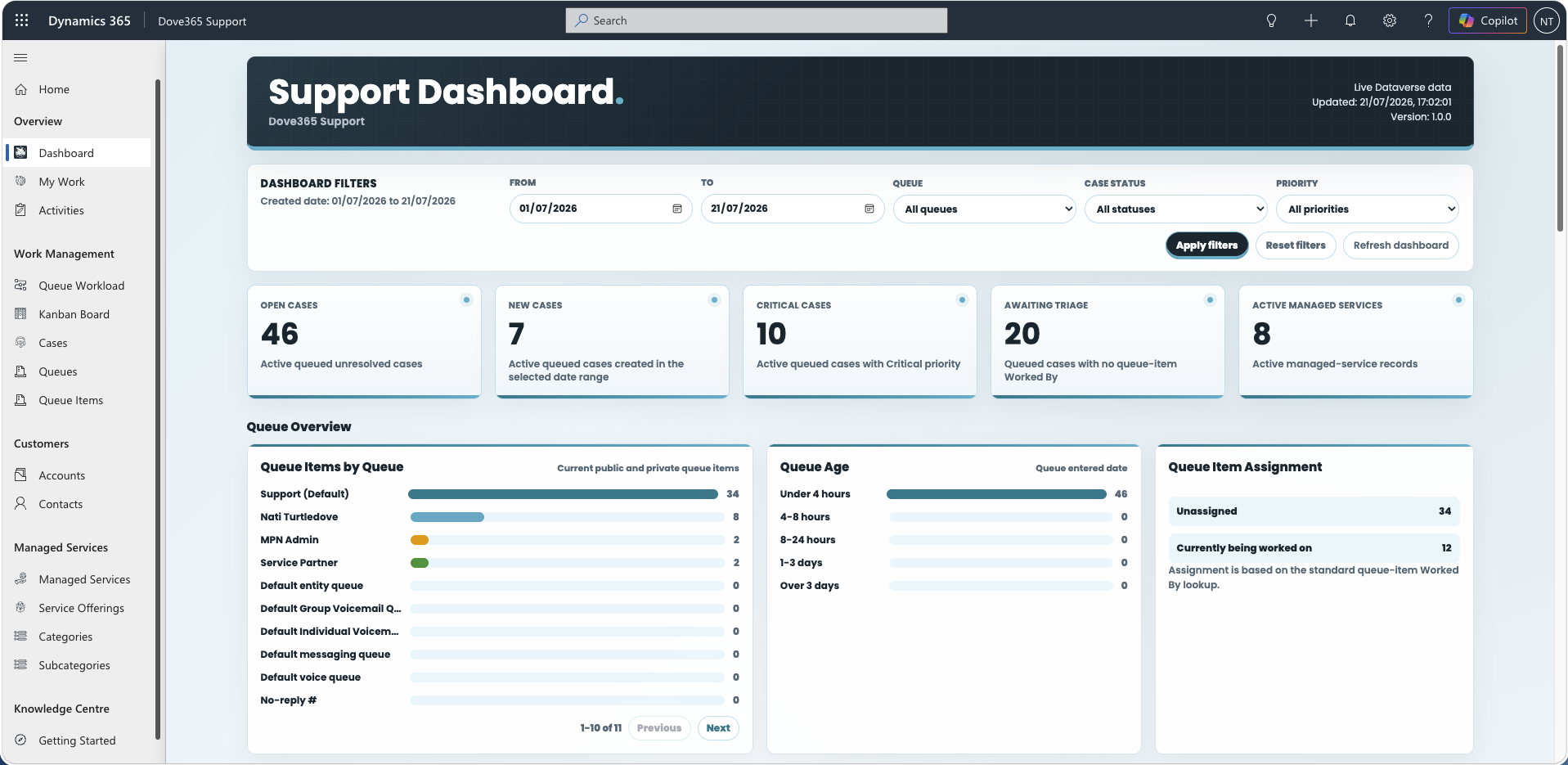
The Support Dashboard is an organisation-wide operational dashboard.
It shows:
- Support KPIs.
- Queue volumes.
- Queue age.
- Queue item assignment.
- Case distributions by status, priority, category, and source.
- Case volume trends.
- Managed service utilisation.
- Open Cases and Managed Services requiring attention.
Use this dashboard for team and operational oversight.
Dashboard filters
The Support Dashboard includes filters for date range, queue, case status, and priority.
The My Support Work Dashboard does not include a filter bar. It automatically scopes data to the signed-in user, user queues, worked queue items, and the default queue.

Dashboard troubleshooting
If data appears missing:
- Confirm the dashboard is opened inside the model-driven app.
- Confirm the user has the correct security role.
- Confirm the default queue environment variable is configured.
- Confirm queue items exist and point to active Dove365 Cases.
- Confirm
Worked Byis populated for items expected inMy Queue Items. - Open the browser console and check dashboard diagnostics.

Definitions
- Organisation-wide dashboard: dashboard that shows cross-user and cross-queue support operations.
- Personal dashboard: dashboard that uses the signed-in user context.
Continue learning
Daily Support Workflow
Follow the sequence for dashboards, queues, cases, activities, and managed service checks.
Admin and Configuration
Open the related Dove365 Support guide for the next part of this workflow.
Dashboards
Open the related Dove365 Support guide for the next part of this workflow.