
Purpose
Queues and Queue Items are central to Dove365 Support. They control how support work is received, assigned, picked, worked, and monitored.
What is a Queue
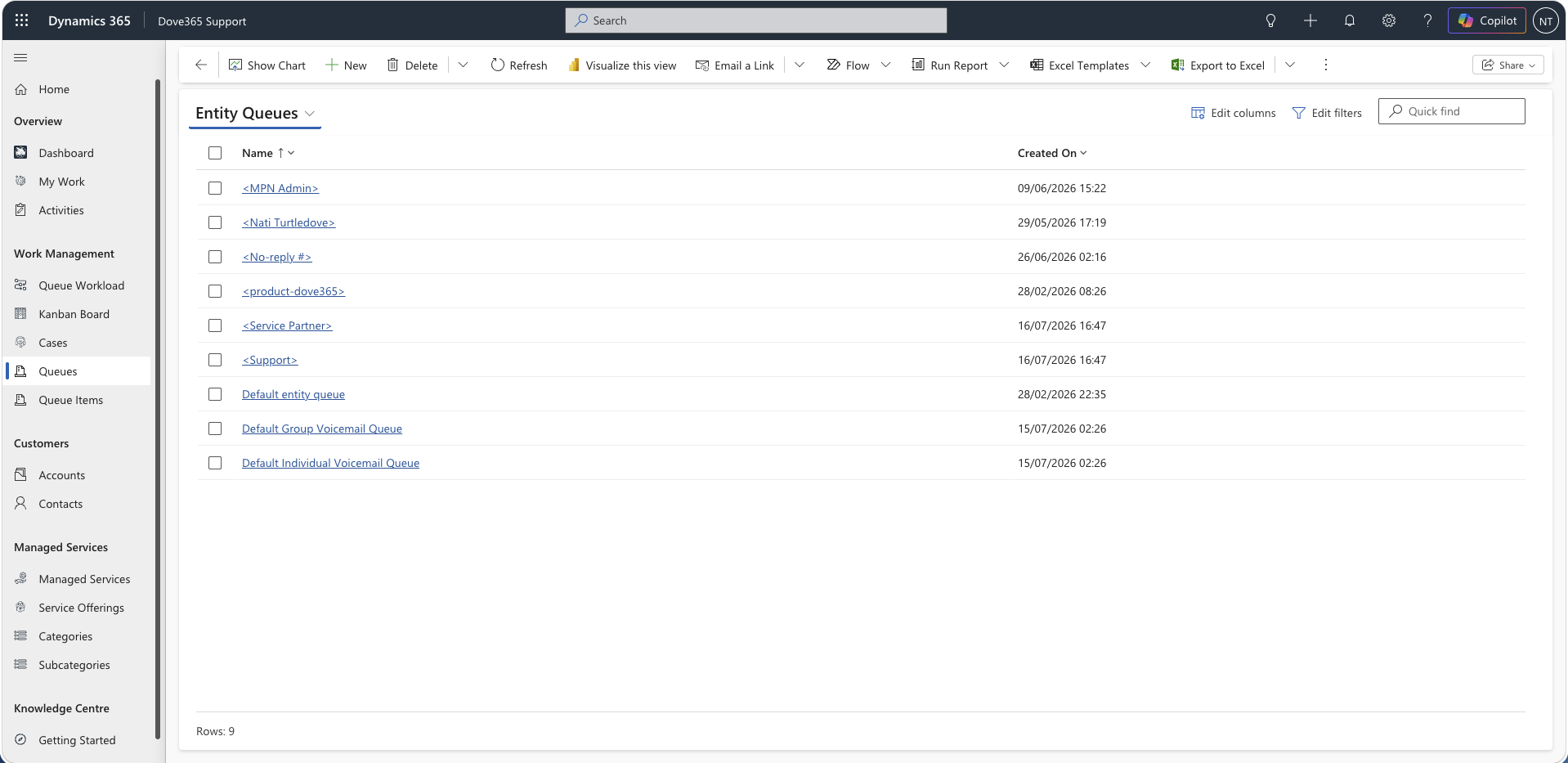
A Queue is a container for work.
Common queue types include:
- Default support intake queue.
- User queues.
- Team queues.
- Specialist queues.
Admins configure queues and queue access. Users work with Queue Items inside those queues.
What is a Queue Item
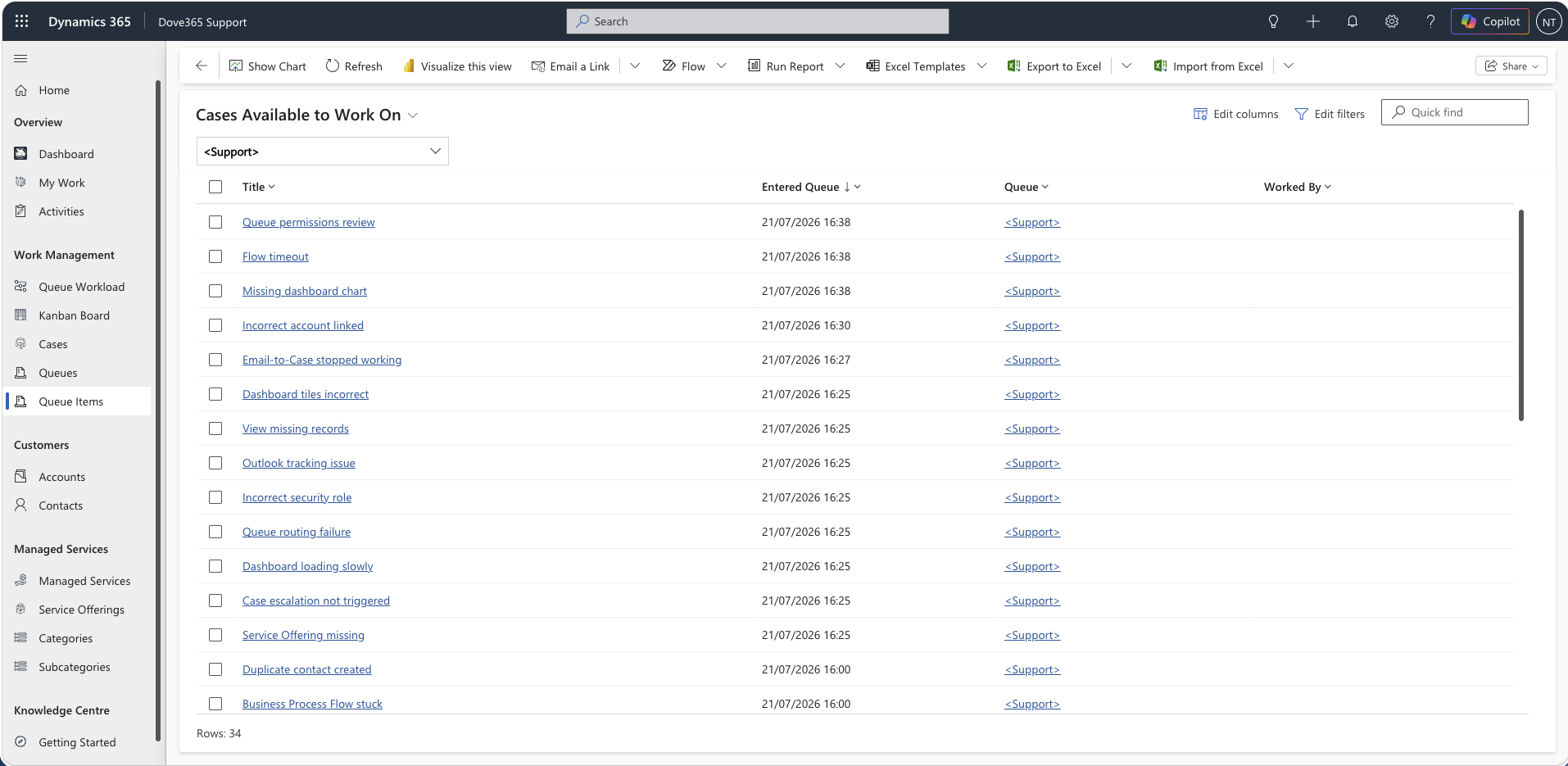
A Queue Item is the queue representation of a record, usually a support Case.
Important fields:
- Queue: where the item is waiting or being worked.
- Object: the related Case.
- Entered Queue: when it entered the queue.
- Worked By: the user currently working the item.
- Status: queue item state/status.
Default queue
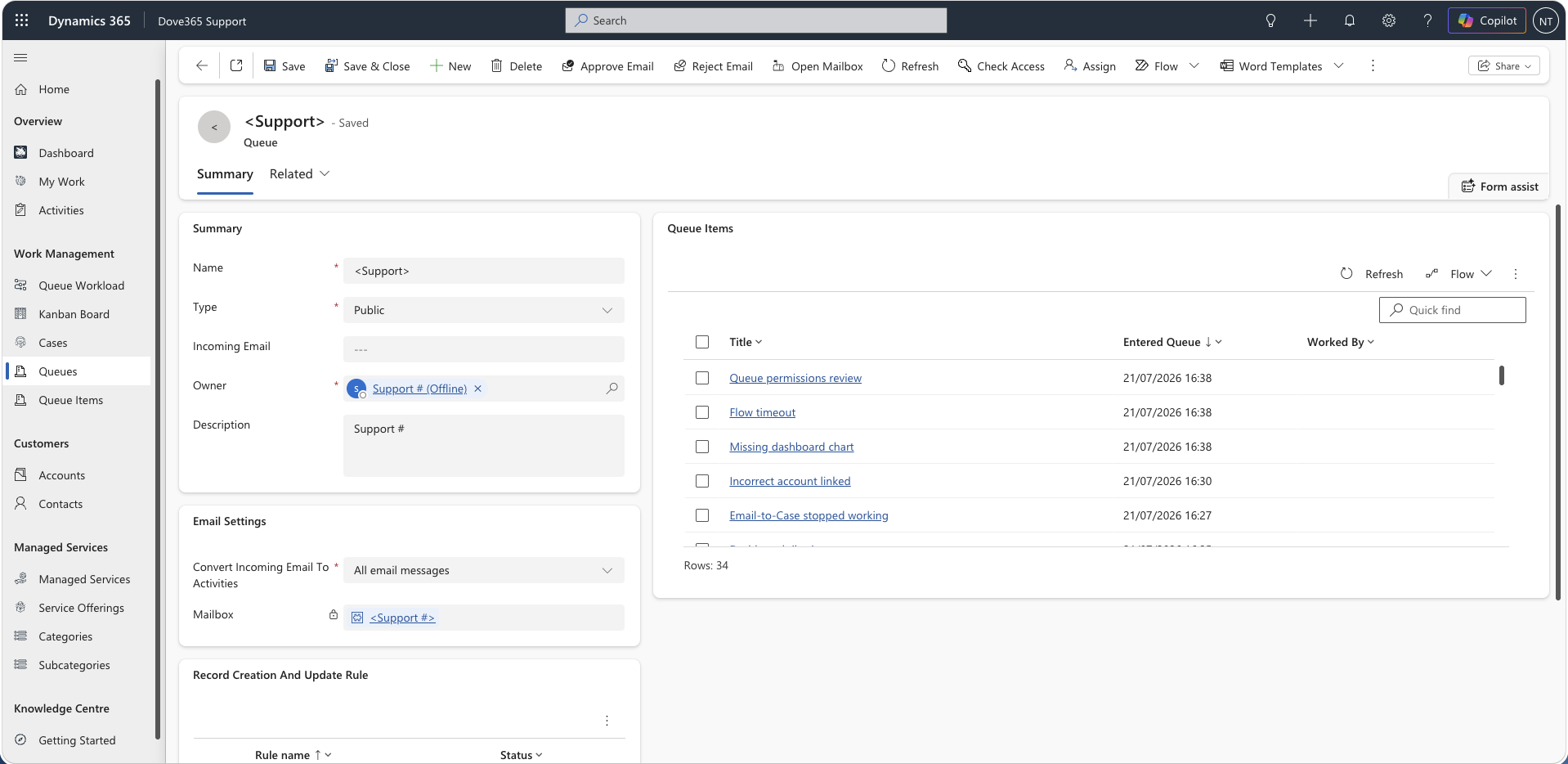
The default queue is configured using dove365_DefaultQueueGUID.
It is used by:
- Email triage automation.
- Cases available to pick.
- Default intake reporting.
If the default queue is wrong, email-created Cases and available-to-pick dashboard counts will be wrong.
Admin queue setup
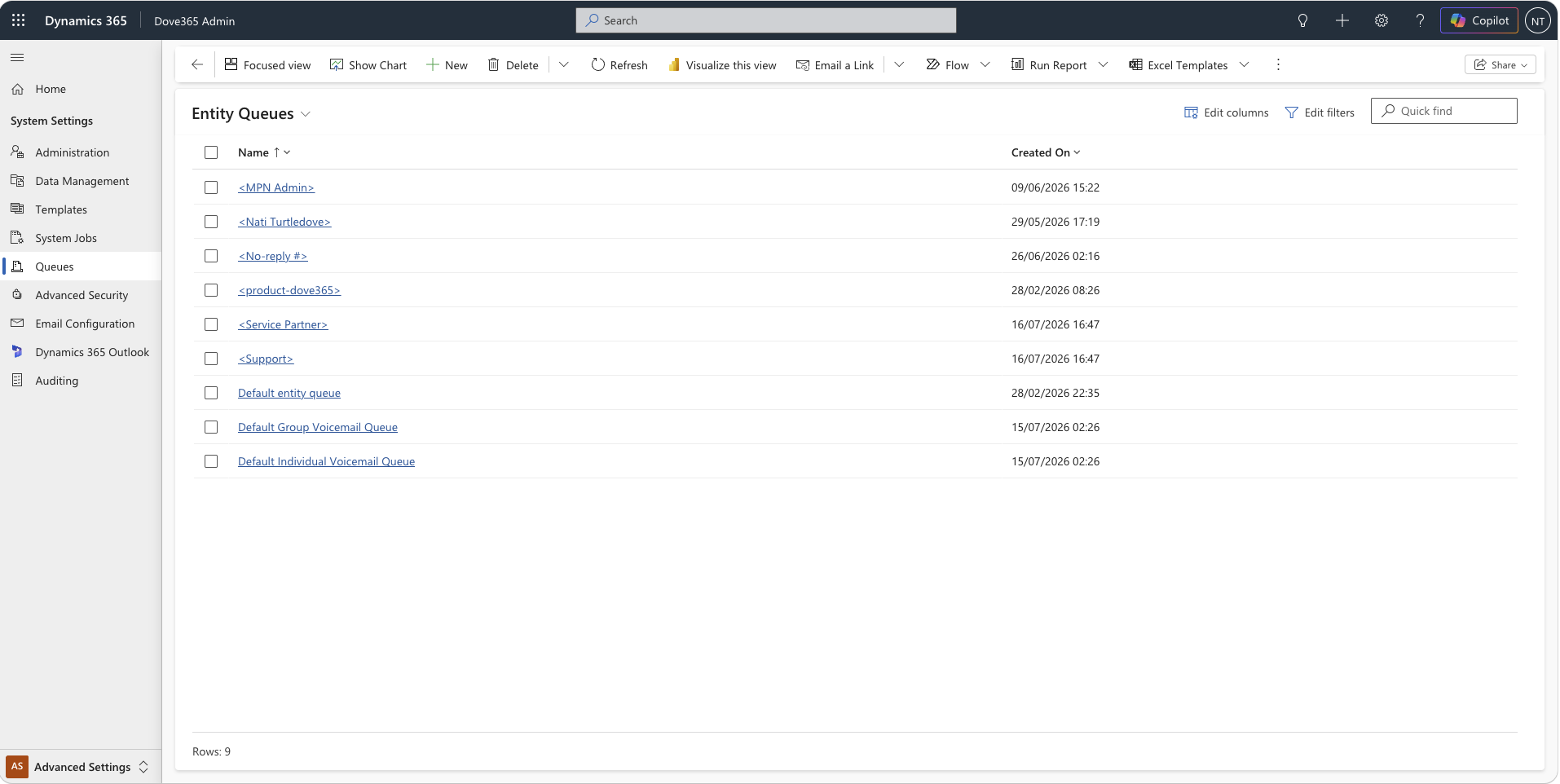
Admins should:
- Create or identify the default support queue.
- Copy the queue GUID.
- Set
dove365_DefaultQueueGUID. - Run
Configure Default Queue. - Confirm users can see the queue.
- Confirm email triage creates Queue Items in the default queue.
User queue work
Users should:
- Open their queue or My Work dashboard.
- Review available items.
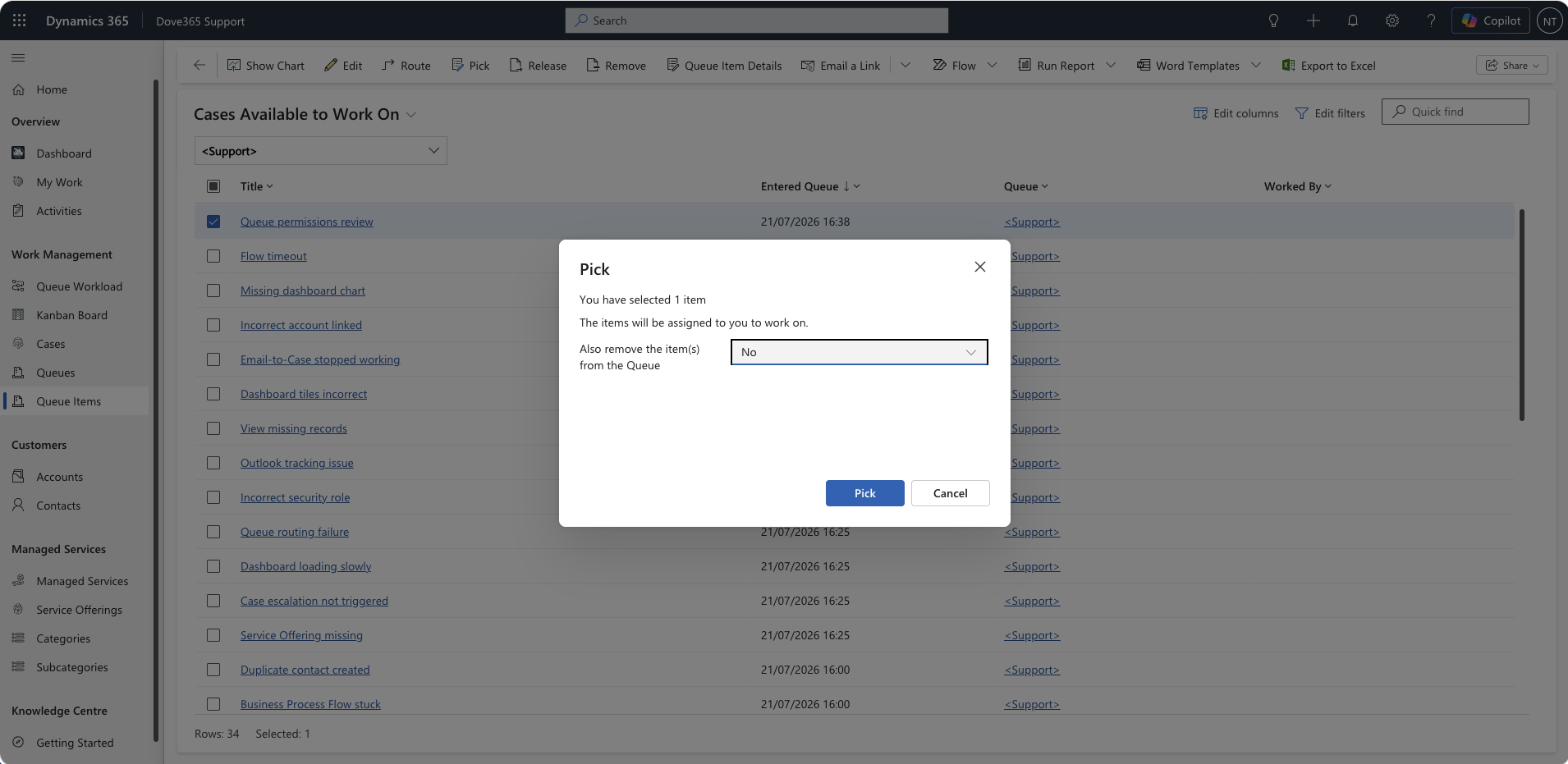
- Pick an item before working it.
- Work the Case.
- Log Support Activities.
- Resolve or route the Case as needed.
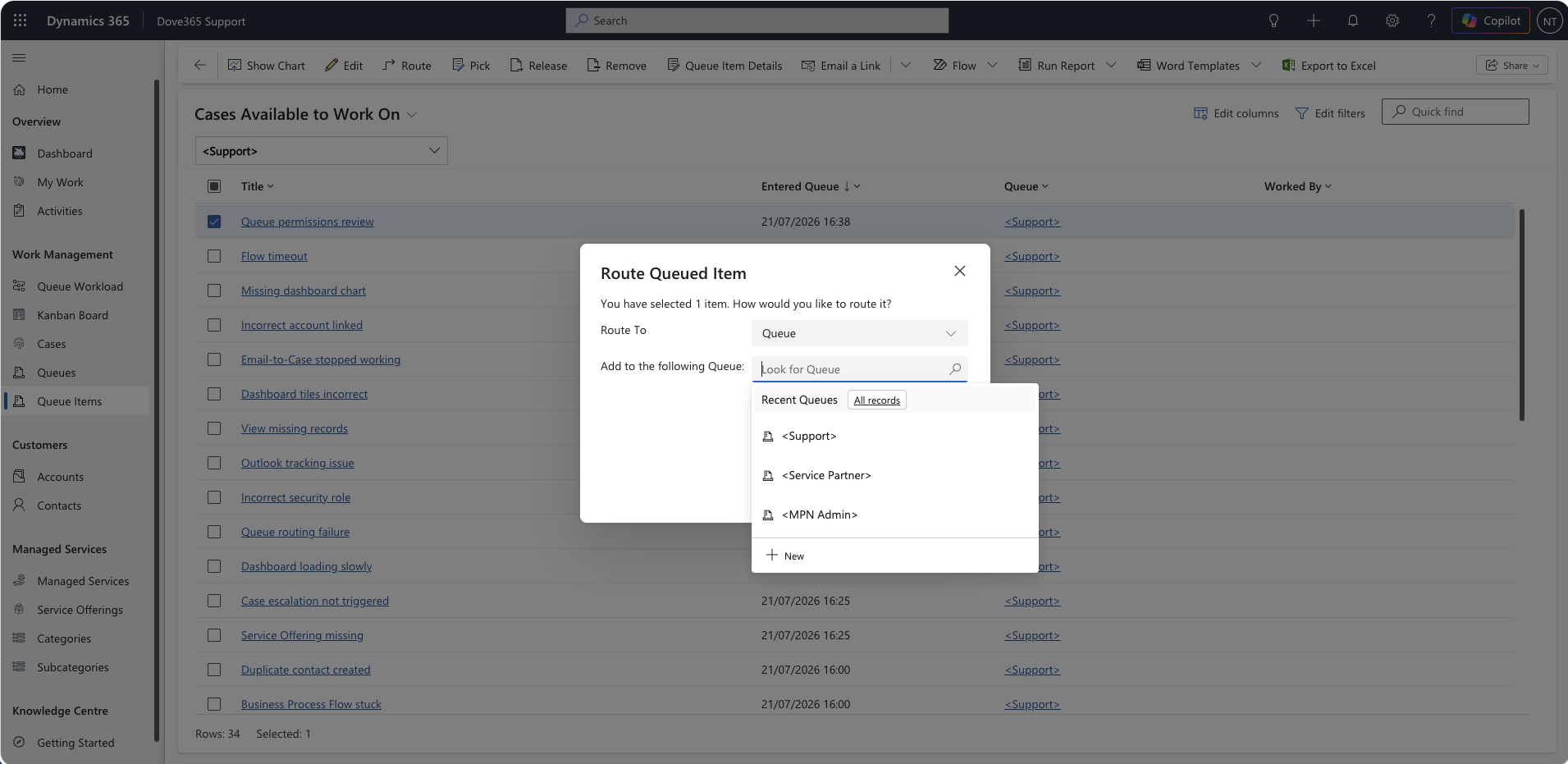
Worked By
Worked By identifies who is currently working a Queue Item.
Dashboard behaviour:
- Blank
Worked By: unassigned. - Populated
Worked By: currently being worked. Worked Byequals signed-in user: appears in My Queue Items.
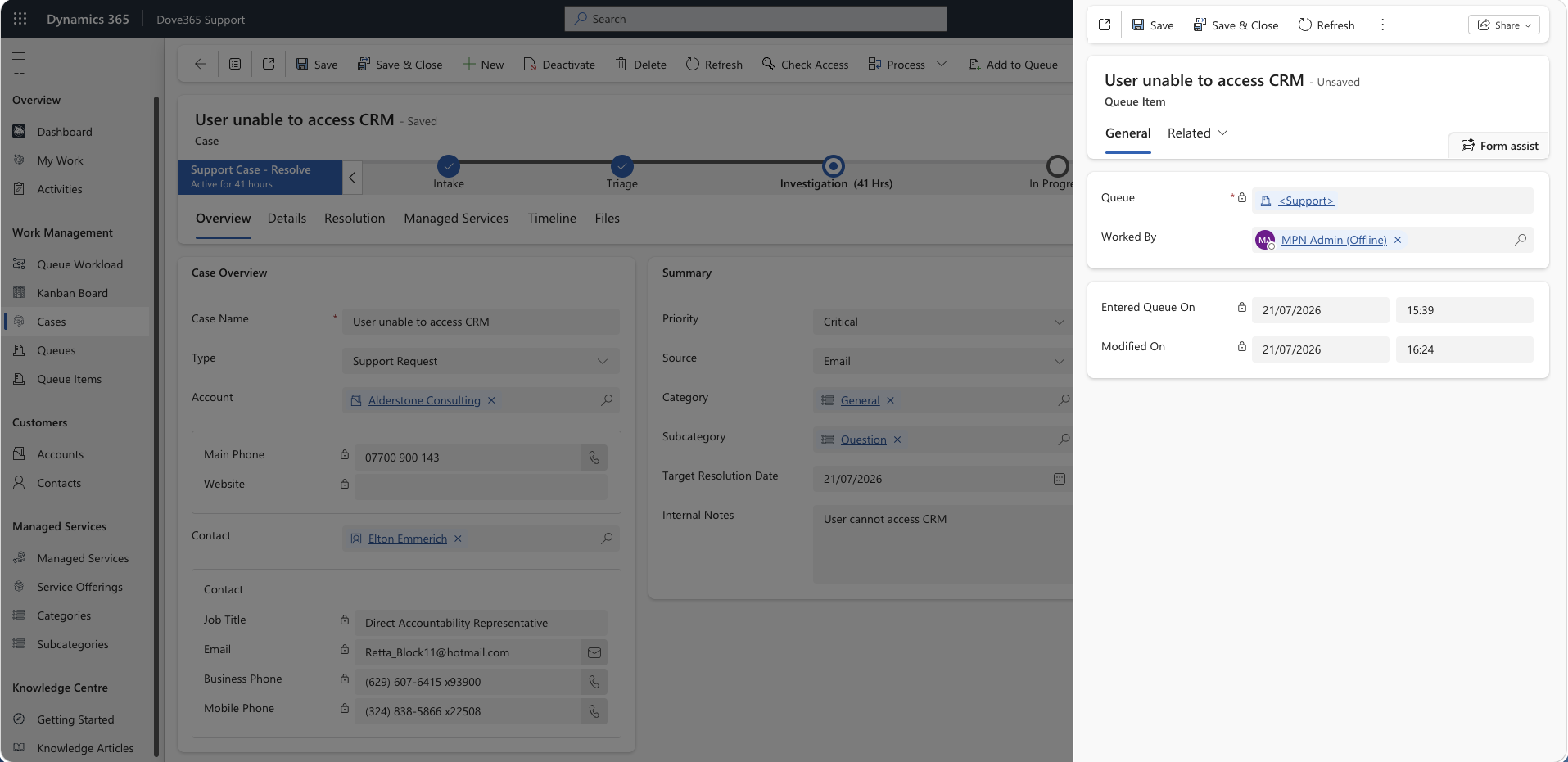
Picked work across queues
A user can work Queue Items from queues other than their own.
That means:
My Queue Itemsshould show items worked by the user across all queues.My Open Casesshows active Cases in the user's own queue.- These counts can be different.
Queue age
Queue age is calculated from Queue Item enteredon.
Use Queue Age to identify work that has waited too long.
Older queue items should be reviewed first, especially if they are critical or overdue.
Best practice
- Do not work directly from a Case list if the work should be controlled by queue intake.
- Pick the Queue Item so
Worked Byis populated. - Do not leave Queue Items worked by you if you are no longer progressing them.
- Escalate stuck queue items early.
Queue membership
Queue membership decides what you can see and where work can be sent. Both work boards depend on it.
- No queue for the target user means no routing. To route work to someone, that user must have an active queue of their own and be a member of it. Without one,
Worked Byis still set but the Case stays in its current queue. - No membership for you means no visibility. The boards only load work from public queues, queues you are a member of, and the configured default queue.
- No visibility means no assignment. You cannot move work you cannot see.
If assignment appears to succeed but the Case never reaches the person's queue, this is almost always the cause. Ask your support admin to confirm queue setup before reporting a fault.
Working queue items from a board
Queue items can be worked from a list view, but most users work them from one of the two boards.
Kanban Board
The Kanban Board groups active Queue Items into Awaiting Triage, Assigned, In Progress, and Escalated, based on whether the Queue Item has a Worked By user and what state the Case is in. Use it to pick up work, assign it, drag it into progress, release it back to triage, or escalate it.
Queue Workload Board
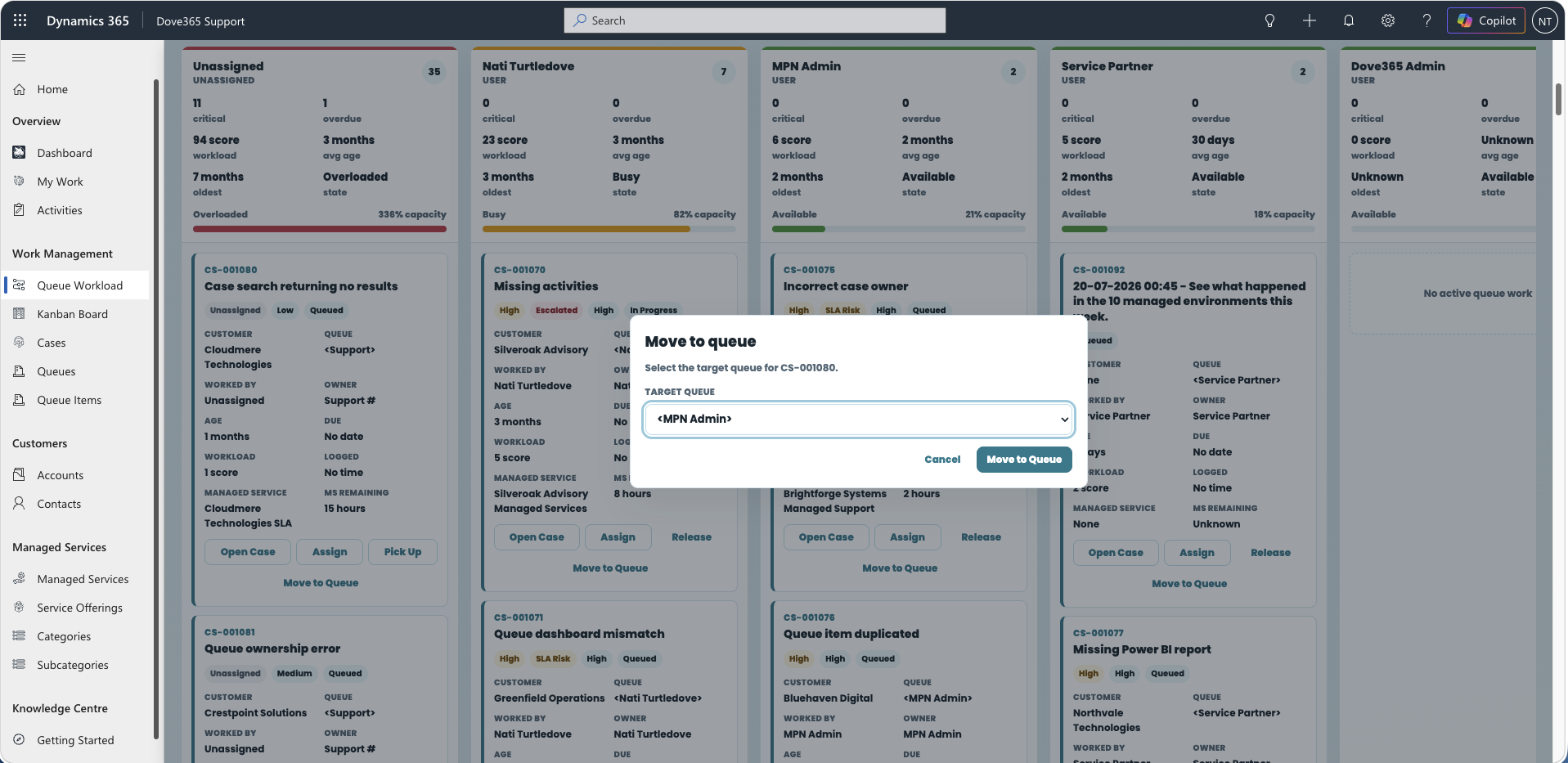
The Queue Workload Board groups the same Queue Items by who is carrying the load. Lanes can represent users, teams, or queues, and each lane reports its capacity as Available, Healthy, Busy, or Overloaded. Use it to rebalance work, move Cases between queues, or clear a backlog in the default triage queue.
Both boards read active Queue Items rather than Cases directly. A Case with more than one active Queue Item shows one card per Queue Item.
Continue learning
Daily Support Workflow
Follow the sequence for dashboards, queues, cases, activities, and managed service checks.
Admin and Configuration
Open the related Dove365 Support guide for the next part of this workflow.
Kanban Board
Work queue items by support state: triage, assigned, in progress, and escalated.
Queue Workload Board
See who is carrying how much work and rebalance across users, teams, and queues.