
How support work enters the system
Dove365 Support separates the Case from the Queue Item. The Case stores the support issue. The Queue Item controls which queue owns the work and who is actively working it.
Email or manual Case creation
Cases can be created manually by a user or automatically from the support mailbox triage flow.
Default queue placement
New email-created Cases are added to the configured default support queue as Queue Items.
Pickup and ownership
When a user picks work, the Queue Item
Worked Byvalue is set and the item appears in that user’s work lists.
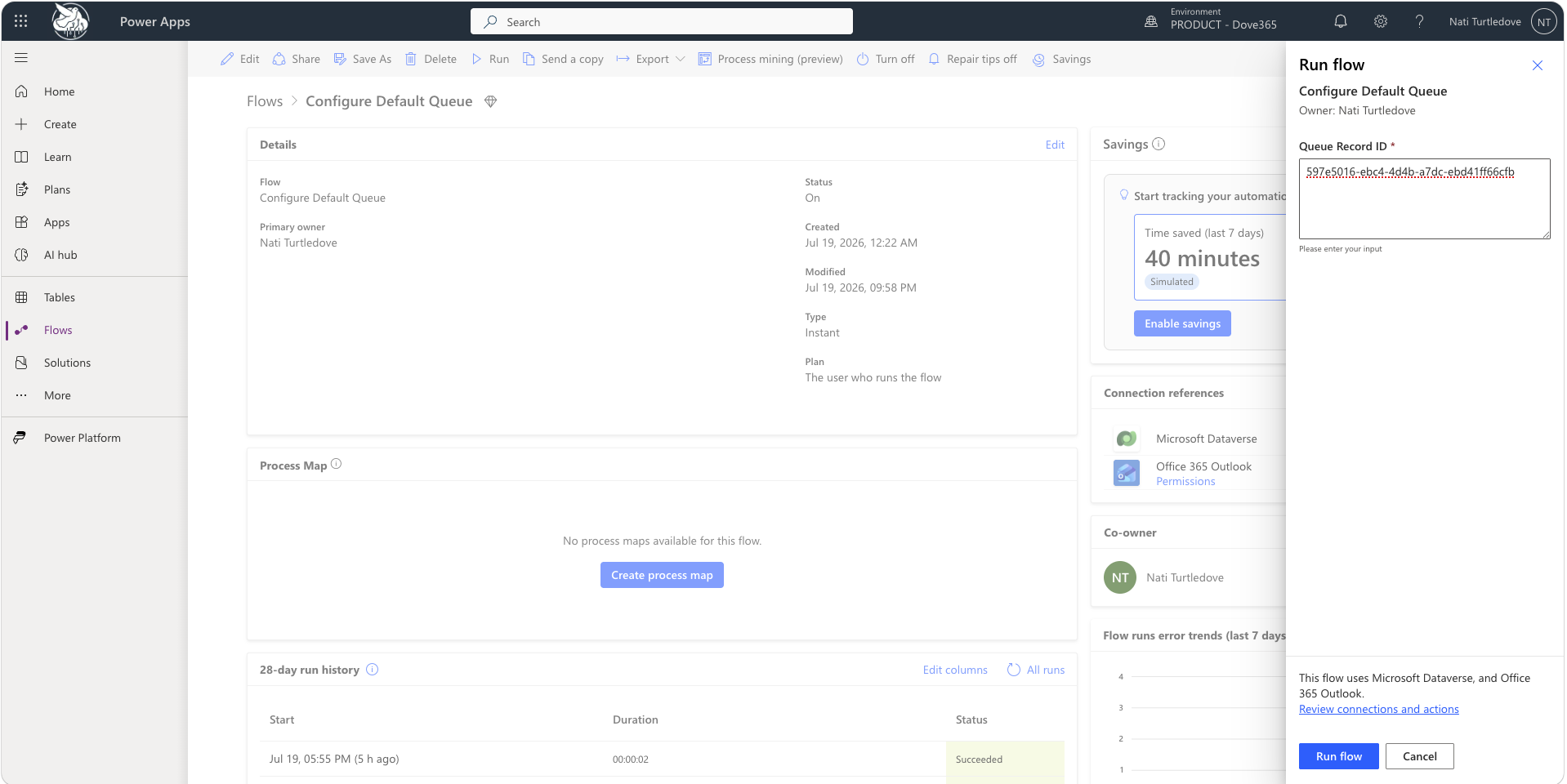
Run Configure Default Queue
- Create or identify the default intake queue.
- Copy the queue GUID.
- Set
dove365_DefaultQueueGUID. -
Run
Configure Default Queuemanually after import or after changing the queue. - Confirm the flow completes successfully.
Validate support mailbox automation
Mailbox address
Confirm the monitored mailbox is the mailbox customers use for support requests.
Connection references
Confirm Outlook and Dataverse connections are authenticated and owned by the intended service account or administrator.
Flow run history
Review successful and failed runs after testing. Failures usually indicate mailbox, connection, permission, or queue configuration issues.
Case and Queue Item records
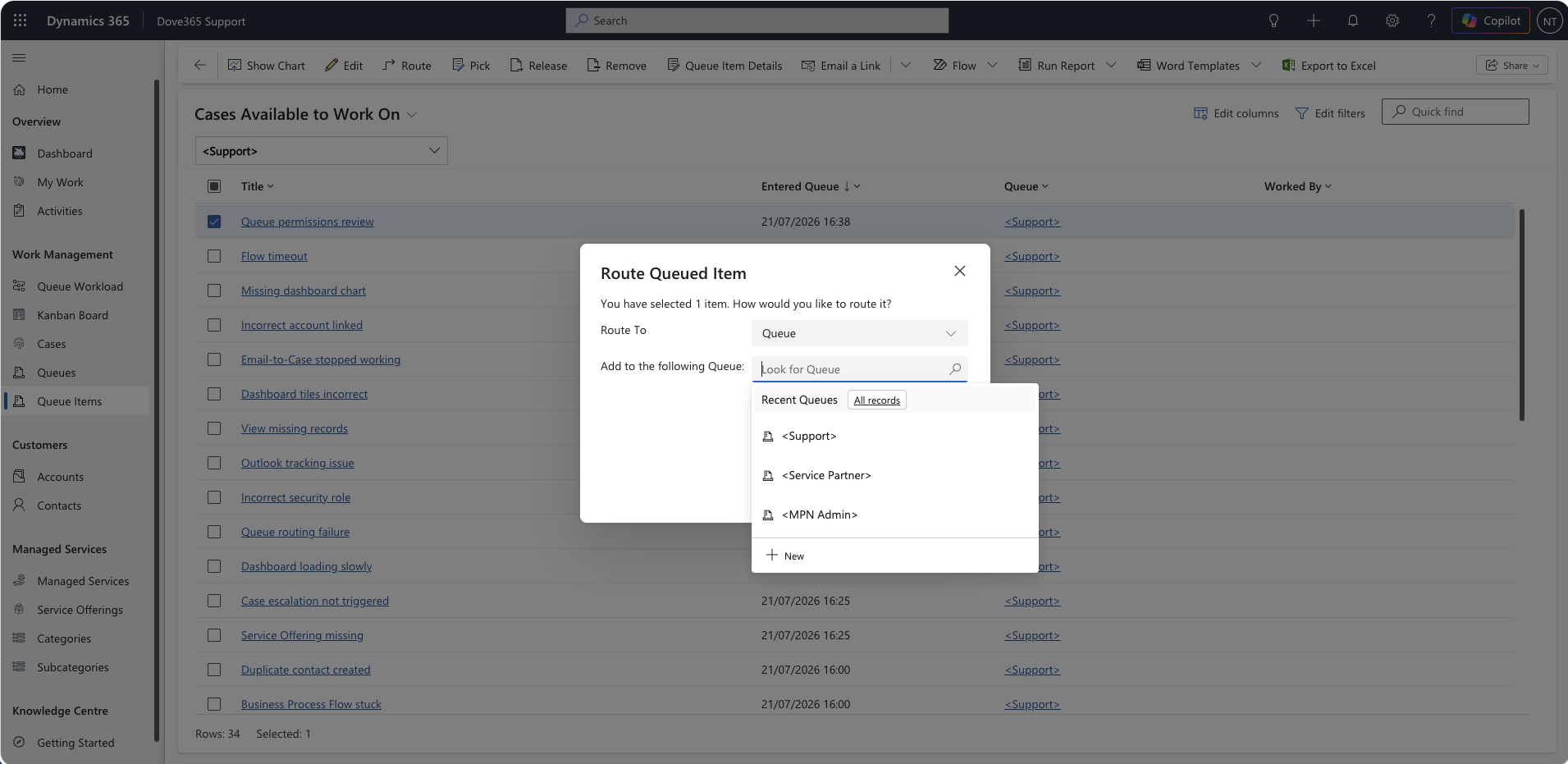
Confirm the email creates a Dove365 Support Case and a Queue Item in the default queue.
What admins should confirm
| Area | Expected result |
|---|---|
| Default queue | The configured queue exists, is active, and is accessible to support users or teams. |
| Email triage | New support emails create Cases and Queue Items without manual intervention. |
| Release from the boards |
Releasing a Case on the
Kanban Board or
Queue Workload Board
returns the Queue Item to this queue and clears
Worked By. Release fails outright if
dove365_DefaultQueueGUID is missing or stale.
|
| Board visibility | The default queue is always loaded by both boards, so unassigned triage work is visible even to users who are not members of it. |
| Worked By | Picked queue work is assigned to the user actively working the item. |
| Dashboards | Available-to-pick and open-case counts reflect the configured queue and active support records. |