
Purpose
Cases are the main support records in Dove365 Support. They track customer issues, requests, service questions, complaints, billing queries, changes, and general enquiries.
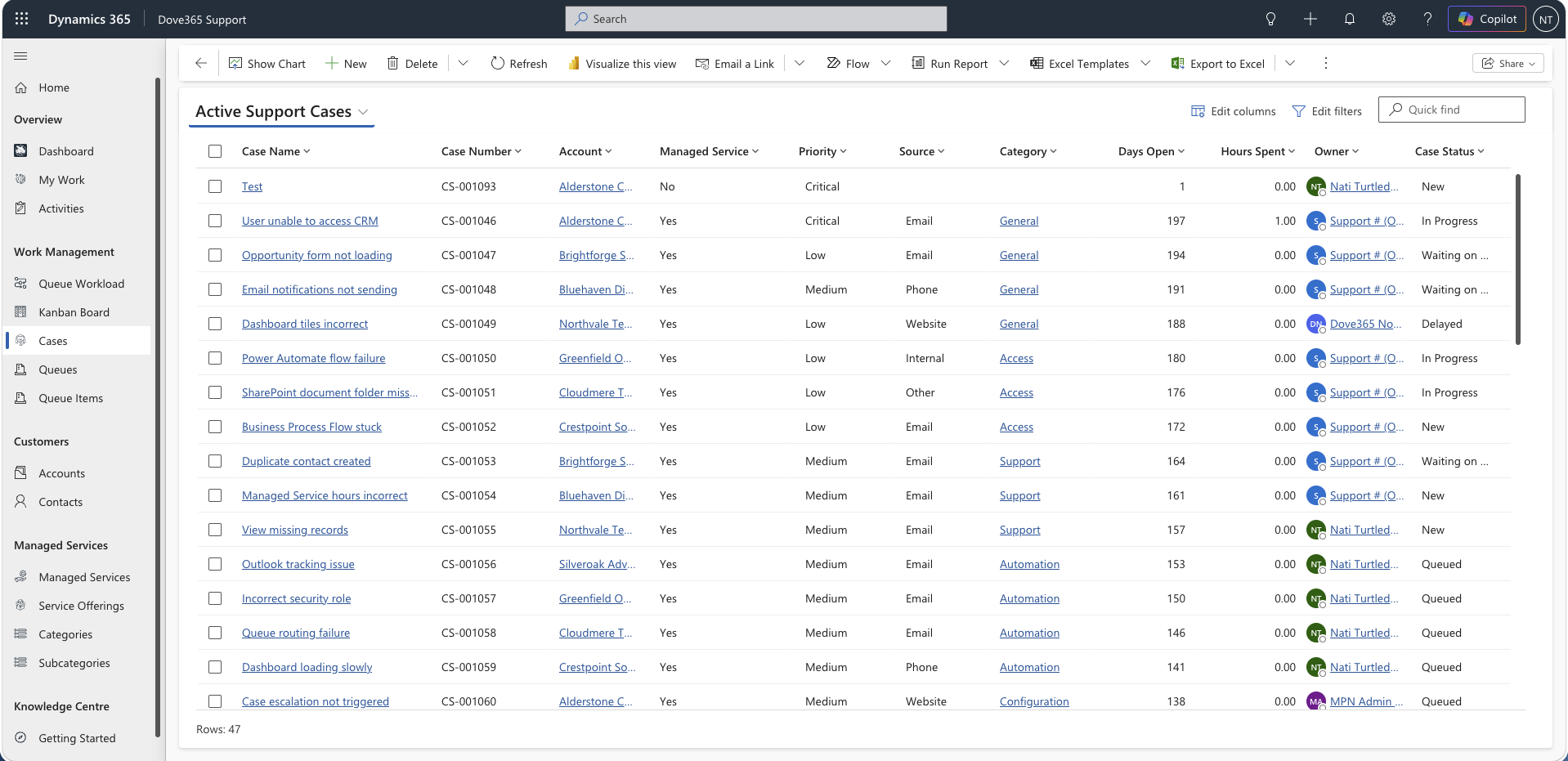
Create a Case
Cases can be created manually or automatically from support email triage.
Manual steps:
- Open Cases.
- Select New.
- Enter the Case name/title.
- Select the Account.
- Select the Contact where known.
- Select priority, source, type, Category, and Subcategory.
- Select Service Offering.
- Link Managed Service if applicable.
- Enter details and target resolution date.
- Save.
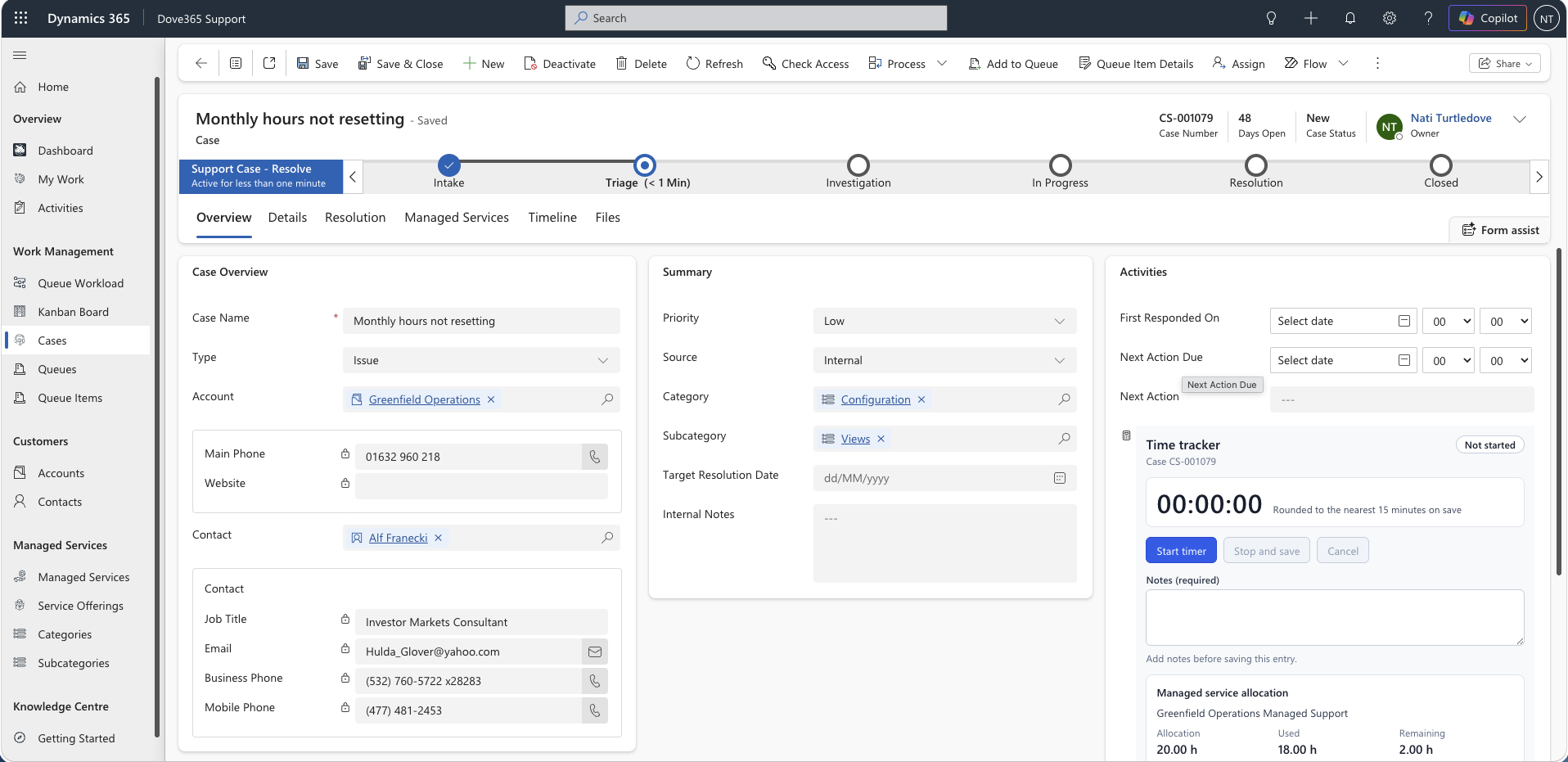
Business process flow
The Support Case - Resolve process guides the Case through to completion, and closes the Case and notifies the customer when resolution is confirmed.
Users should complete required Case information before moving to resolution.
Typical lifecycle:
- Intake.
- Triage.
- Investigation.
- Work and communication.
- Resolution details.
- Close Case.
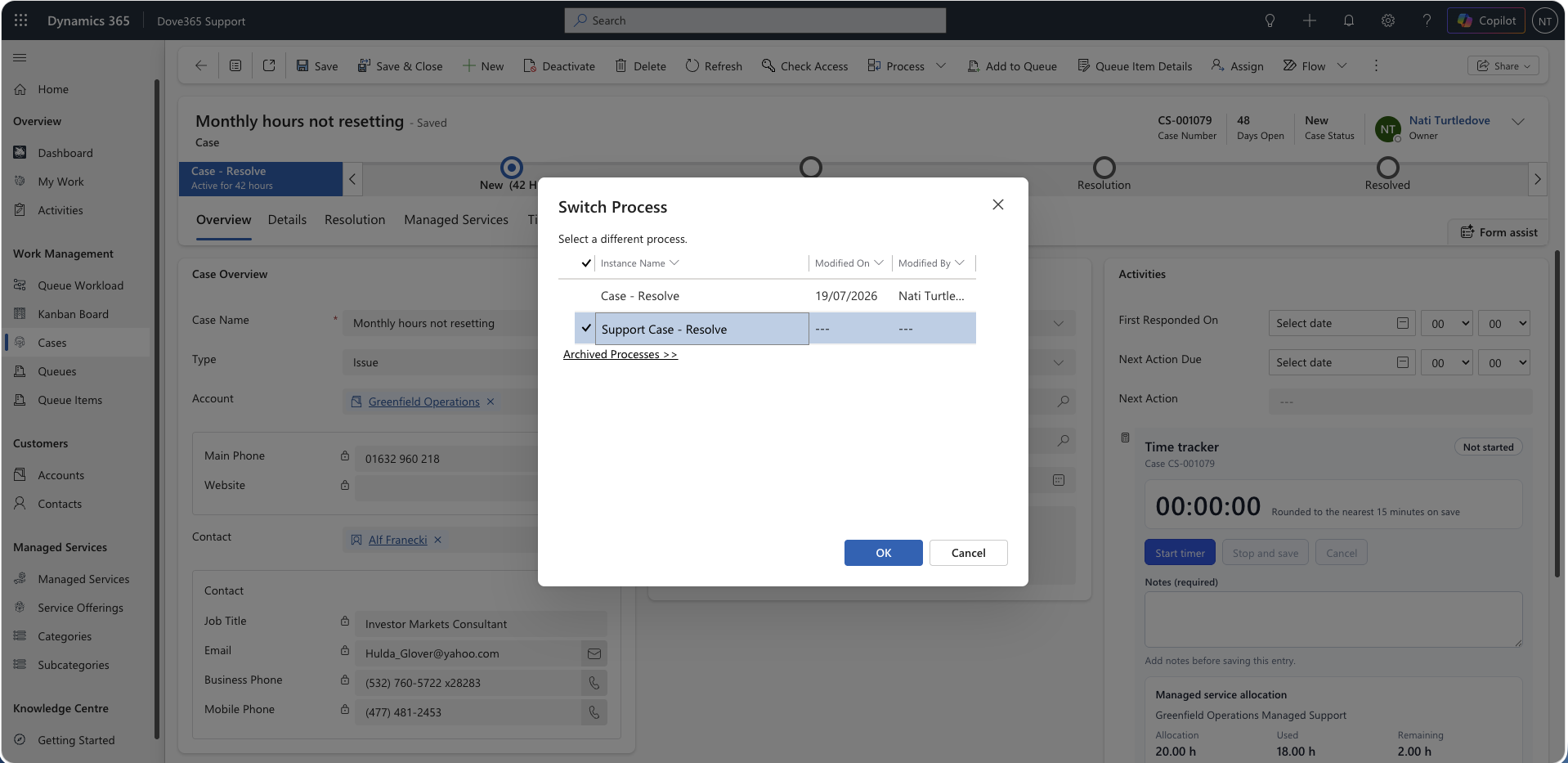
Investigation
During investigation:
- Review the customer history.
- Review Managed Service context.
- Review related activities.
- Add Support Activities for work performed.
- Update status and priority as needed.
Logging time as you work
The Case form carries the Support Activity Time Tracker. Start the timer when you begin work, pause and resume as you move between tasks, then Stop and save. The tracker creates a completed Support Activity rounded to the nearest 15 minutes and refreshes the totals for today and for the Case.
Because the time lands as a Support Activity, it feeds the Case Hours Spent rollup and the Managed Service usage figures automatically. There is no need to create the activity by hand.
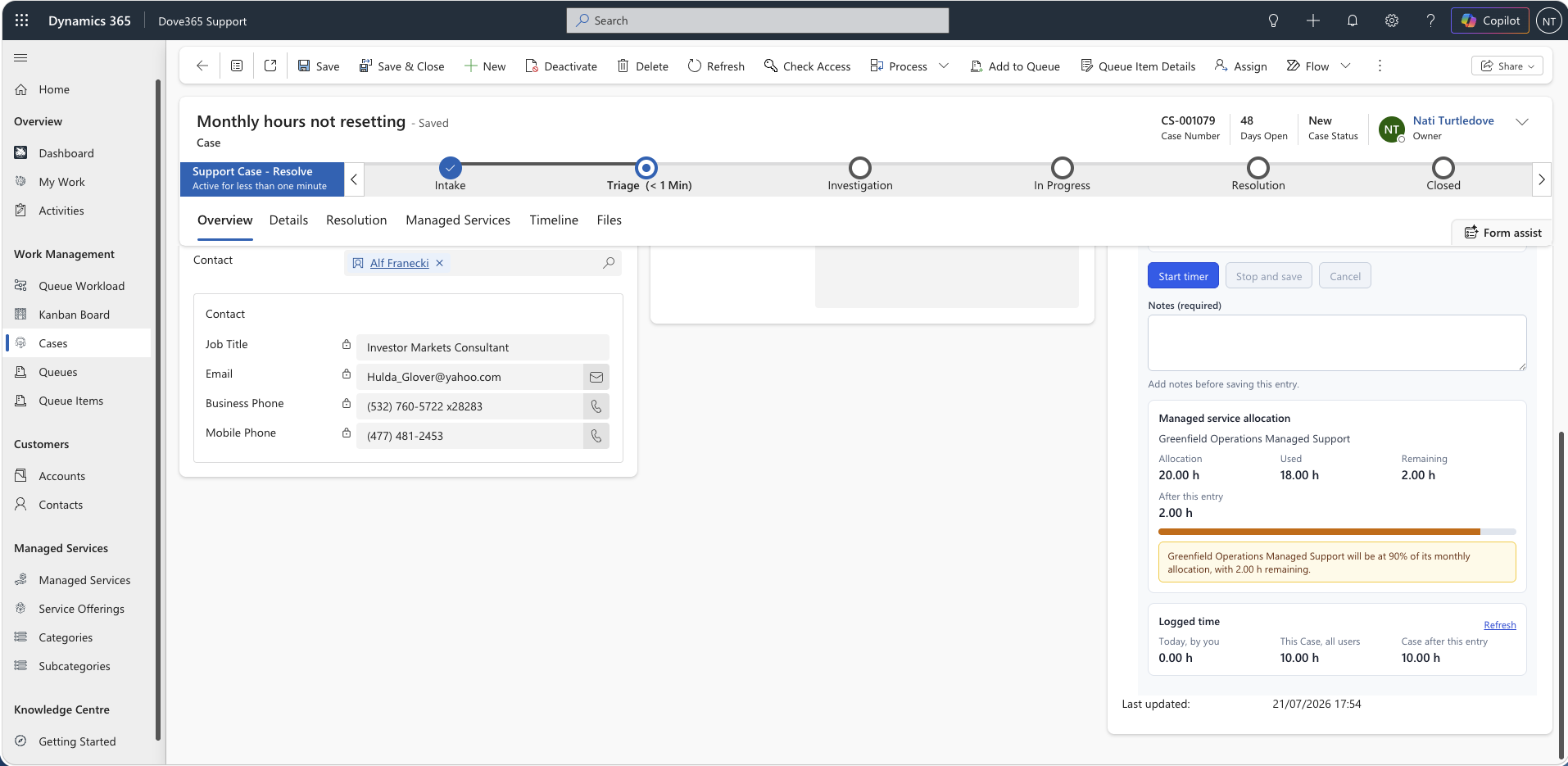
Managed service context
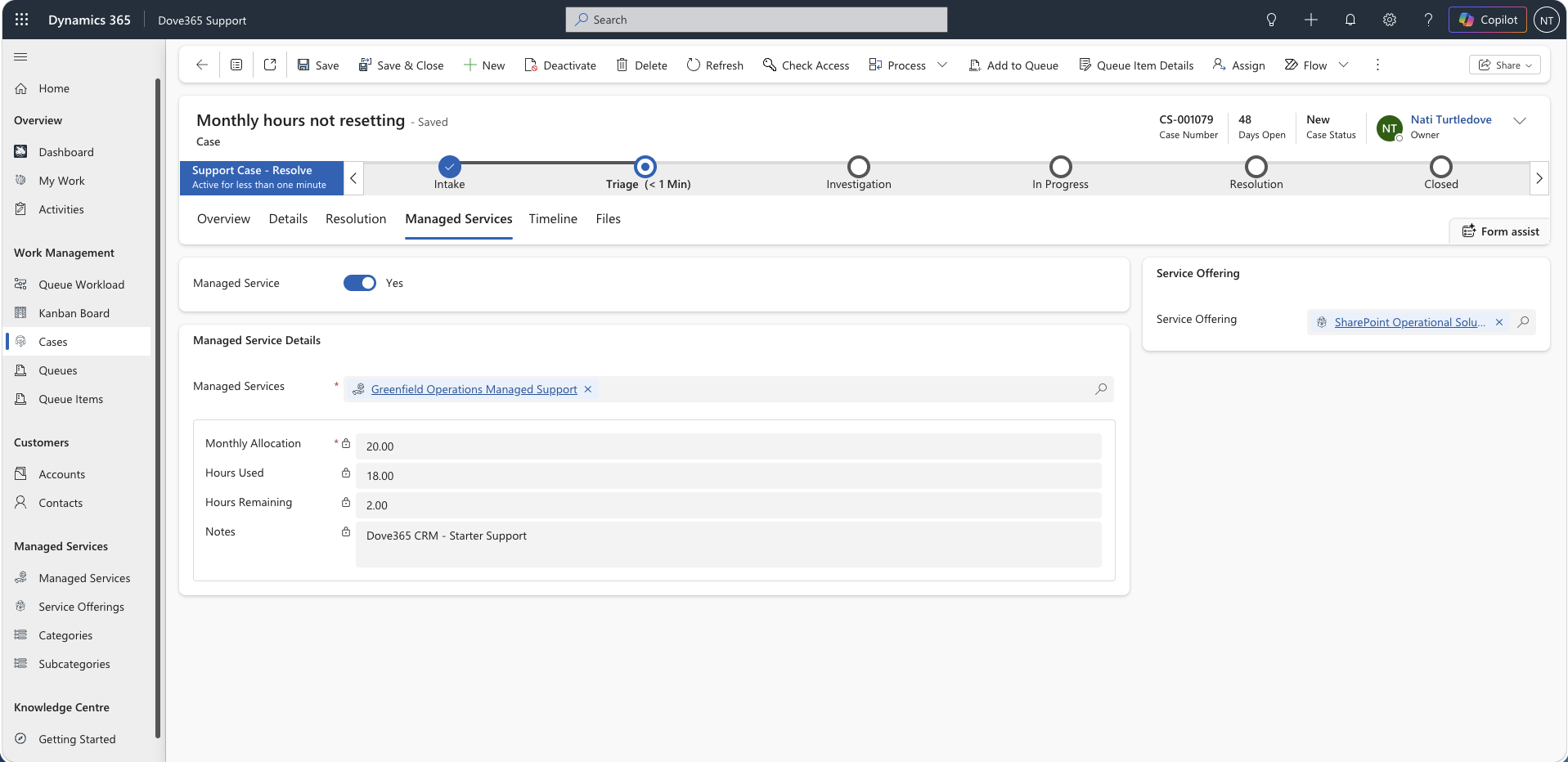
Where a Case consumes contracted support, flag it as managed-service related and select the correct Managed Service. The Case then shows the allocation context you need before committing further work.
- Confirm the Managed Service is right for the customer and service type.
- Review allocation, hours used, and hours remaining before starting significant work.
- Raise over-allocation with the account manager rather than absorbing it silently.
A Case flagged as managed-service related but missing a Managed Service link appears in the Cases Requiring Attention list on the My Support Work dashboard.
Working Cases from a board
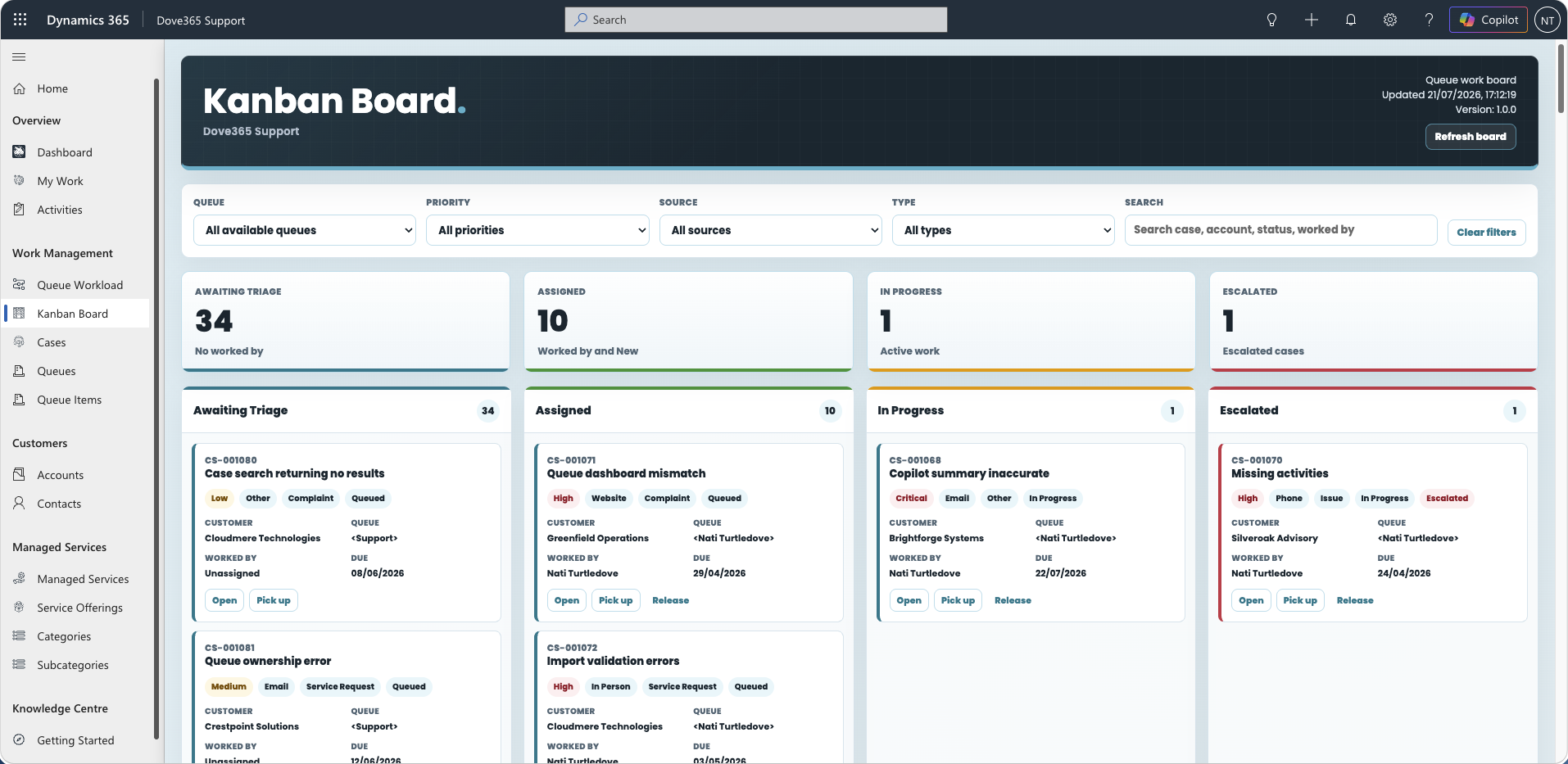
Most Cases reach you through a queue rather than a Case list. Two boards let you act on them without opening each record first.
- The Kanban Board groups Cases by support state and lets you pick up, assign, progress, release, and escalate them.
- The Queue Workload Board groups the same Cases by who is carrying the load, and lets you reassign, move between queues, or release back to triage.
Both boards act on the Queue Item behind the Case. Worked By on the Queue Item identifies who is working it, and is separate from the Case owner.
Escalation
Escalate a Case when manager or specialist attention is required.
Before escalating:
- Confirm the reason for escalation.
- Set escalation fields.
- Confirm the escalation manager is populated.
- Add clear notes.
The Notify Case Escalation Manager automation notifies the escalation manager when the Case is escalated.
You can also escalate from a board. On the Kanban Board, drag the card into the Escalated column and select the escalation manager. Dove365 Support then ensures the Queue Item has a Worked By user, routes it to that user's queue where needed, sets the Case as escalated, populates the escalation manager, and moves the Case into an active support status.
Escalated Cases also carry extra weight on the Queue Workload Board, adding 2 to the Case workload score so the person carrying them is not treated as having spare capacity.
Resolution
Before resolving:
- Confirm the customer issue is complete.
- Confirm Support Activities and hours are entered.
- Confirm Managed Service usage is correct.
- Enter resolution details.
- Use the Case resolution process to close the Case.
The Case resolution process closes the Case once the resolution details are complete.
Cancel or inactivate
Only cancel or inactivate a Case where it should not be completed as normal support work.
Use clear notes so future users understand why the Case was not resolved.
Continue learning
Daily Support Workflow
Follow the sequence for dashboards, queues, cases, activities, and managed service checks.
Admin and Configuration
Open the related Dove365 Support guide for the next part of this workflow.
Time Tracker
Log support time straight from the Case form, with rounding, daily totals, and allocation warnings.
Kanban Board
Pick up, assign, progress, release, and escalate Cases from a visual queue board.