
Scope / When this applies
Use this guide when configuring Dove365 Support after installation or when maintaining reference data and administration settings.
Required admin actions after import
- Assign security roles.
- Configure environment variables.
- Confirm the default queue exists.
- Run
Configure Default Queuemanually. - Confirm support mailbox automation is enabled.
- Confirm Categories and Subcategories exist.
- Confirm Service Offerings exist in Dove365 Common.
- Confirm dashboards are available in the app.
- Confirm the Kanban Board and Queue Workload Board web resources are available in the app.
- Confirm every support user has an active queue of their own and is a member of it.
- Confirm support users appear in the Dove365 Users view.
- Confirm the Support Activity Time Tracker is on the Case form.
Environment variables
Default Queue GUID
Environment variable:
dove365_DefaultQueueGUID
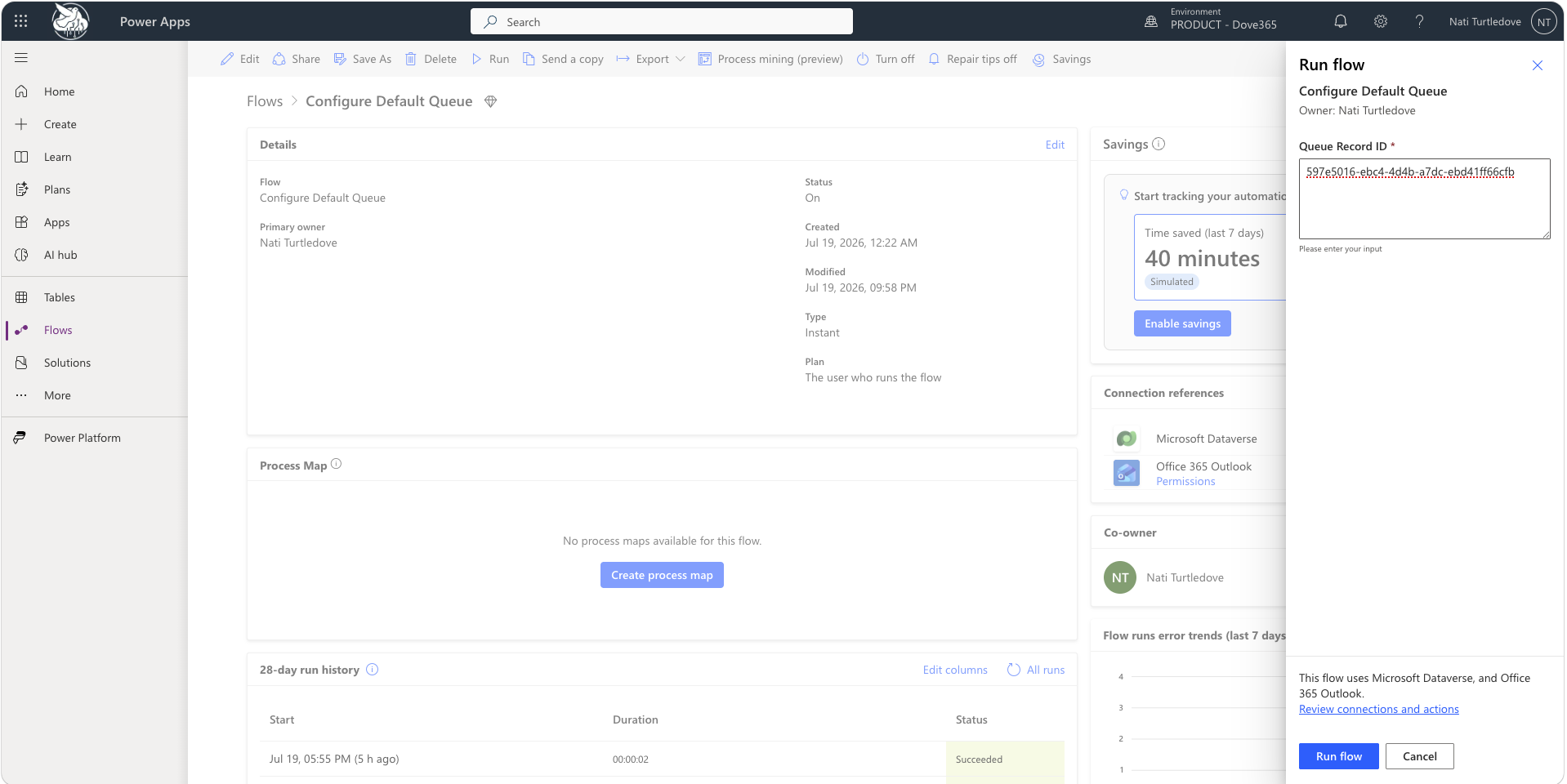
Purpose:
- Identifies the default queue used by support email triage and dashboard available-to-pick logic.
Admin action:
- Open the Queue record that should be used as the default intake queue.
- Copy the Queue GUID.
- Set the
dove365_DefaultQueueGUIDenvironment variable. - Run
Configure Default Queuemanually and provide the default queue GUID.
Support Mailbox Address
Purpose:
- Identifies the mailbox monitored by the support triage automation.
Admin action:
- Confirm the mailbox exists.
- Confirm the Outlook connection reference is authenticated.
- Set the mailbox address environment variable.
- Test the email triage flow using a controlled support email.
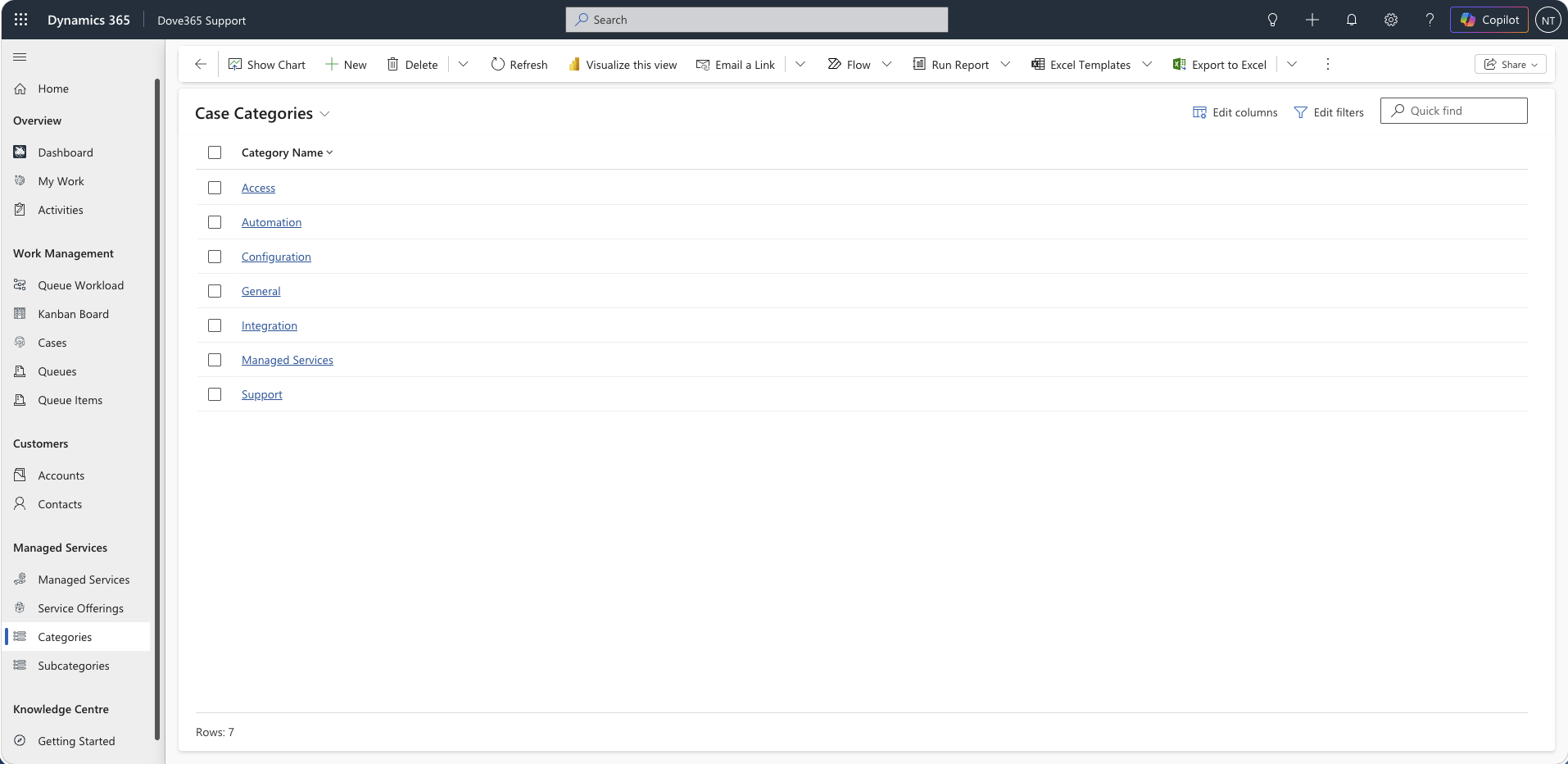
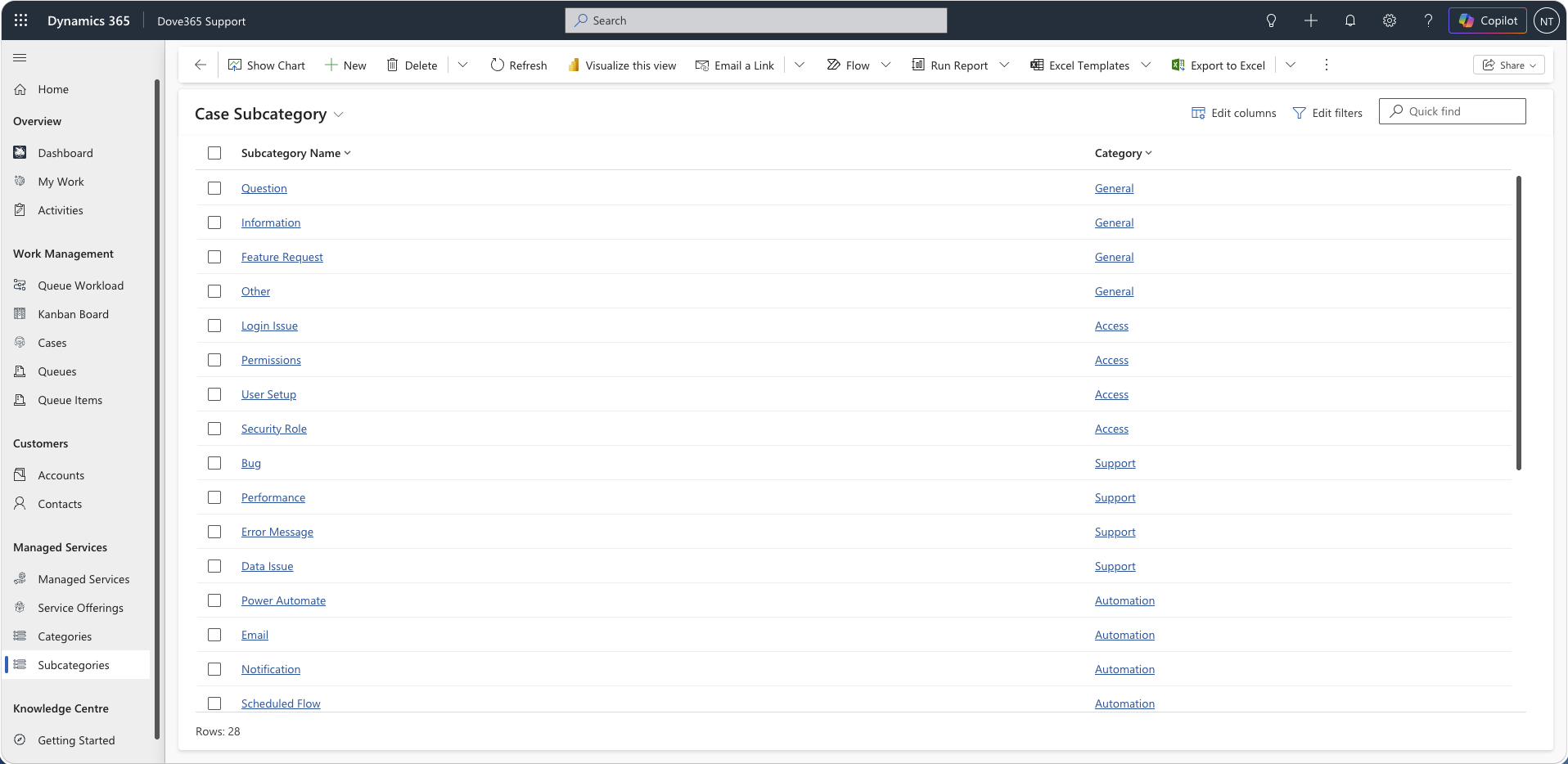
Categories and Subcategories
Categories and Subcategories are managed by users with the Dove365 Support Admin role.
Use them to standardise Case classification.
Admin guidance:
- Keep category names clear and support-focused.
- Use subcategories only where they improve reporting or routing.
- Retire unused values by deactivating rather than deleting where historical records exist.
Service Offerings
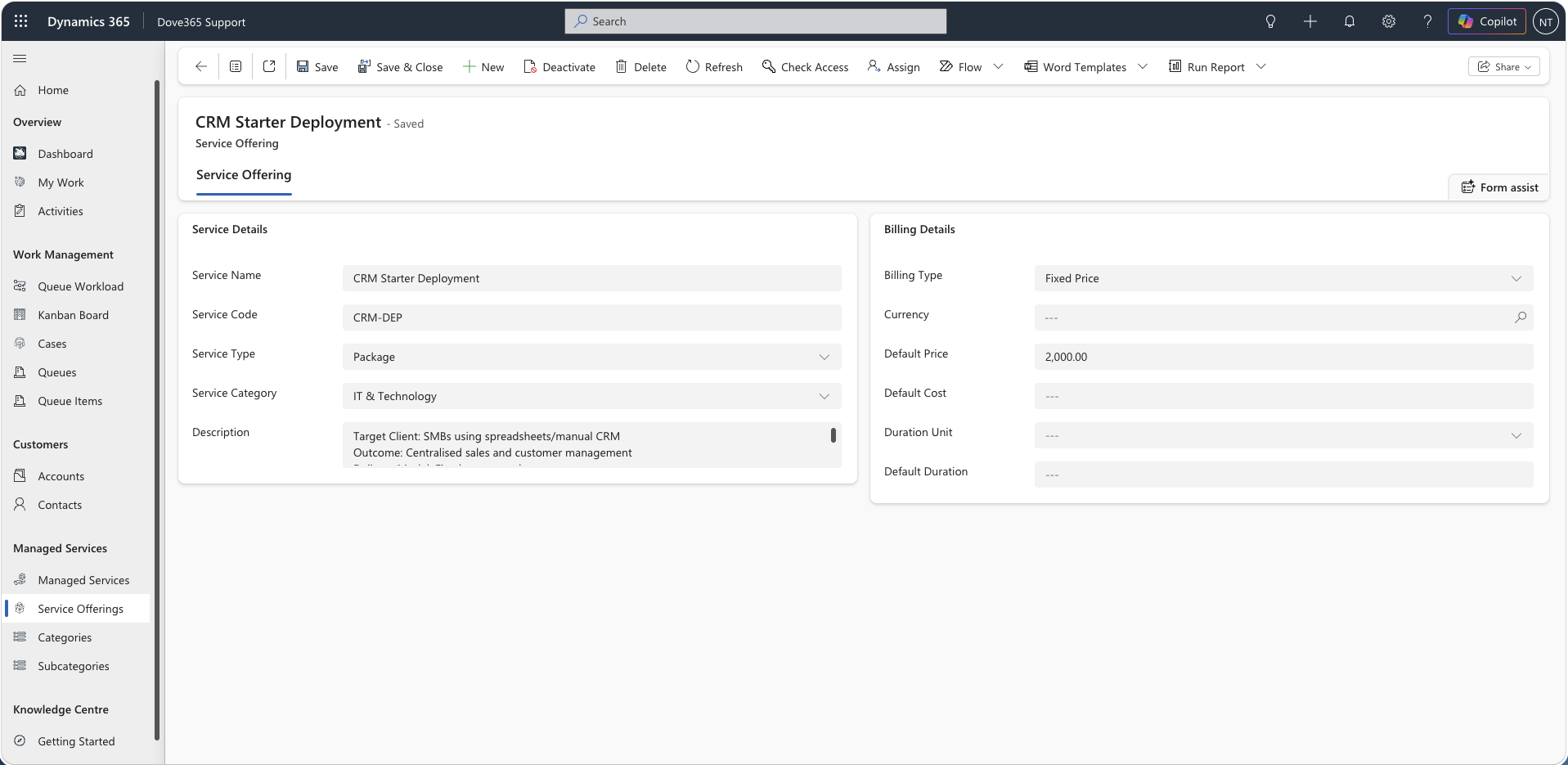
Service Offerings are managed in the main Dove365 Admin/Common guides.
Support admins use Service Offerings in Dove365 Support for:
- Case classification.
- Managed Service setup.
- Support coverage context.
Do not create duplicate Service Offerings in Support-specific workflows.
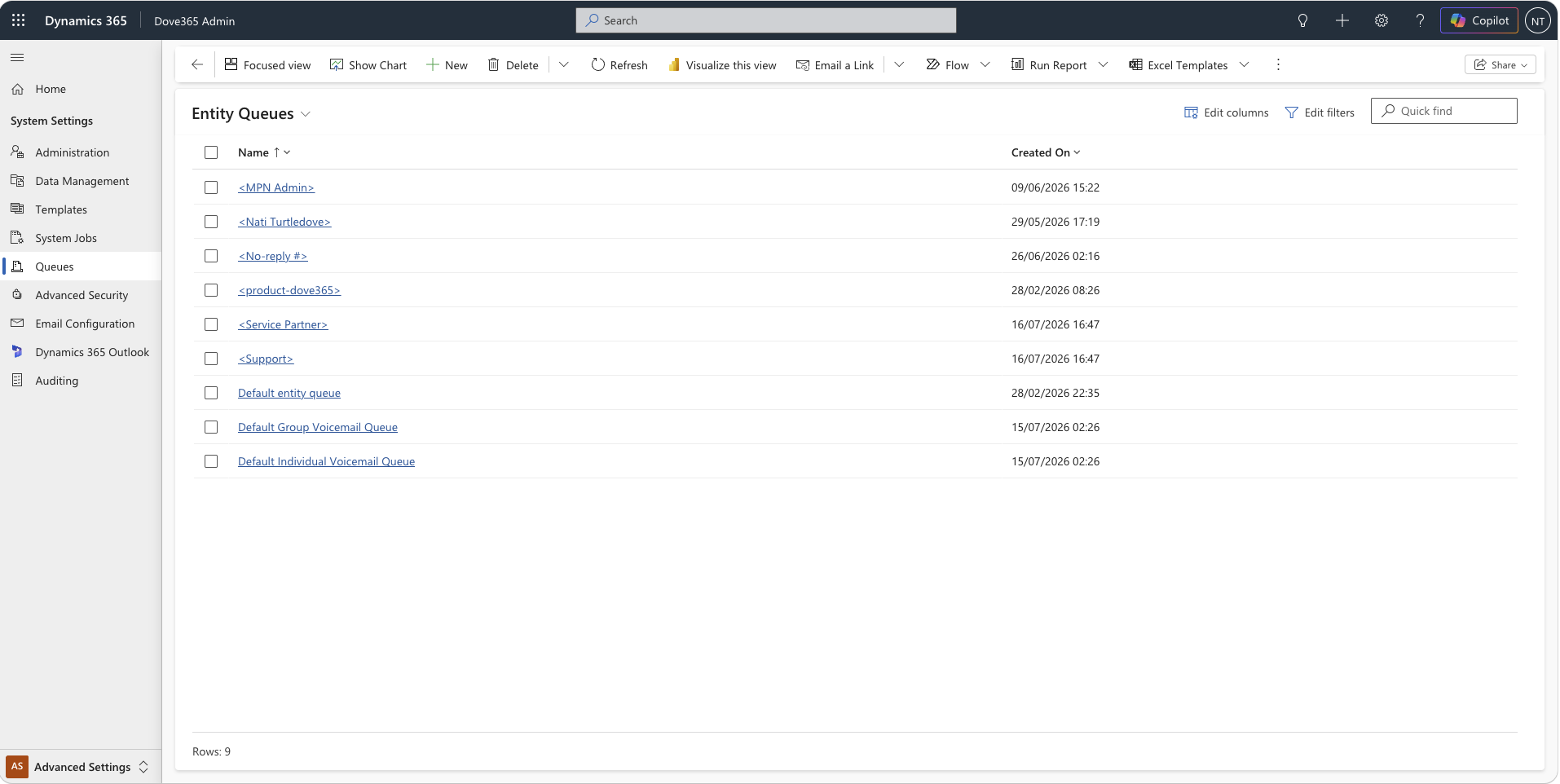
Queues
Queues are critical to Dove365 Support.
Admins should maintain:
- A configured default intake queue.
- User or team queues for routing work.
- Queue security access.
- Queue membership and ownership.
The default queue is used by automation and dashboards. If it is incorrect, support email triage and available-to-pick reporting will be wrong.
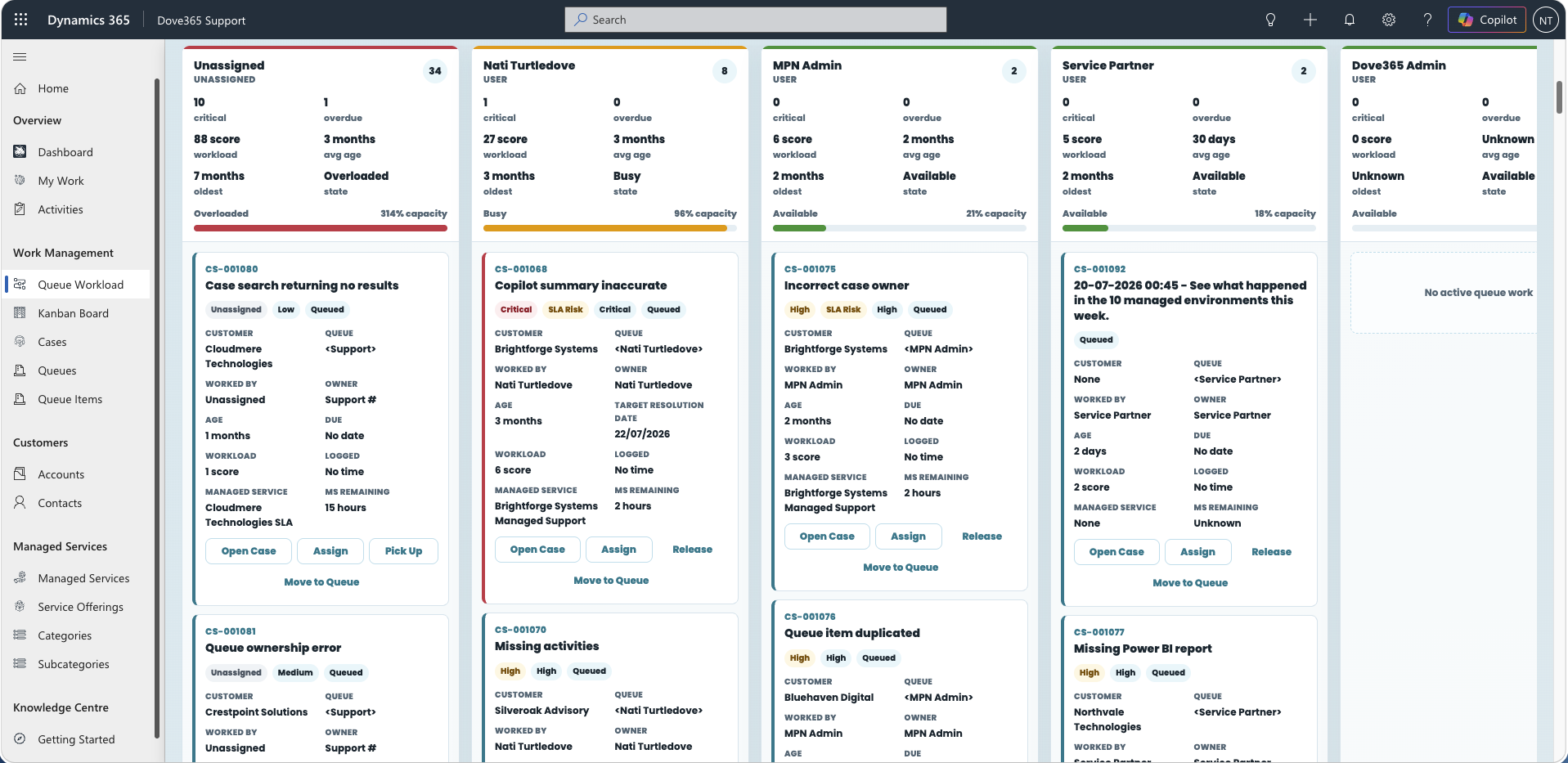
Queue membership drives the work boards
The Kanban Board and Queue Workload Board depend entirely on queue setup. Two rules matter:
- Routing needs a target queue. Work can only be routed to a user who has an active queue of their own and is a member of it. Without one,
Worked Byis set but the Case stays where it is. - Visibility needs membership. The boards load work only from public queues, queues the signed-in user is a member of, and the configured default queue.
Most reports of “assignment does not work” are queue membership problems, not board faults.
Work board requirements
Both boards are web resources inside the Dove365 Support model-driven app. Confirm the following before rolling them out:
dove365_DefaultQueueGUIDholds a current value. Release depends on it, without it, releasing a Case back to triage fails.- Every support user has an active queue of their own, and is a member of that queue.
- Support users are members of the shared queues they are expected to manage.
- Support users have active Dataverse user records and appear in the Dove365 Users view.
- Users have permission to read Cases, read Queue Items, update Queue Items, update Cases, and use the queue actions
AddToQueueandPickFromQueue. - Support teams are named so they can be identified, or own the queues they work. The Queue Workload Board picks up owner teams whose name contains
support,service,helpdesk, orqueue, plus any team that owns a visible queue. - Cases carry a
Target Resolution Date, so workload urgency scoring is meaningful. - The Kanban Board and Queue Workload Board web resources are available in the app.
See the Kanban Board and Queue Workload Board guides for the full behaviour and troubleshooting steps.
Support Activity Time Tracker
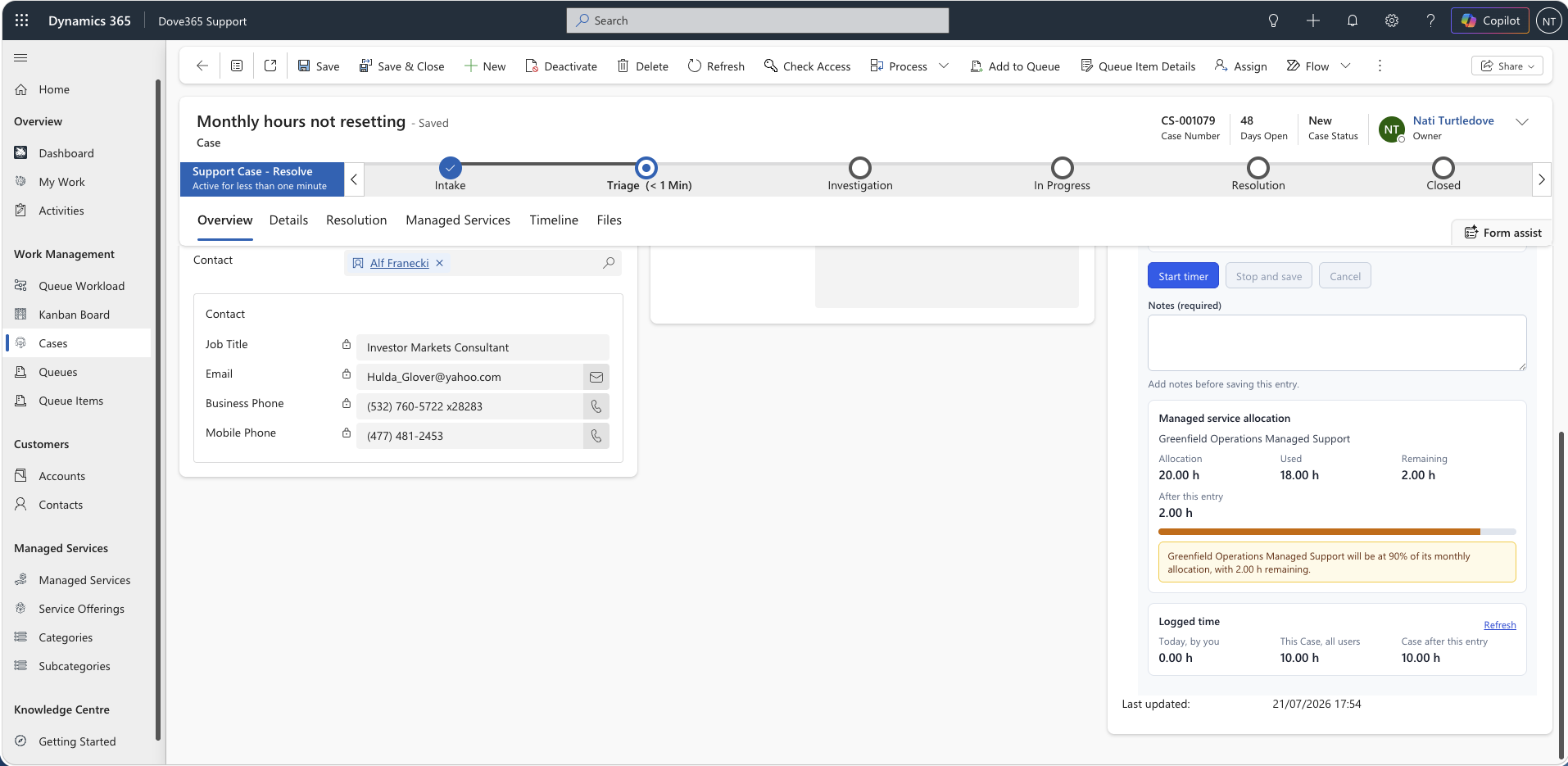
The time tracker is a component bound to the Case form field Hours Spent. The binding gives the control a fallback total; the control never writes to that field.
Adding it to the Case form
- Open the Case main form in the modern designer.
- Add the Hours Spent field to the form.
- With the field selected, choose Components → Get more components → Dove365 Support Activity Time Tracker, and enable it for Web, Phone and Tablet.
- Hide the field label, and give the section enough height, about 420px, for the panels.
- Save and publish.
Configurable properties
Rounding increment (default 15 minutes), minimum chargeable minutes, require notes, subject prefix, today totals basis, managed service warning threshold (default 80 per cent), and idle warning minutes (default 240).
Required privileges
Users need Create, Read and Write on Support Activity, Read on Case, and Read on Managed Services to see the allocation panel. Without the Managed Services read privilege the tracker still works, the allocation panel is simply omitted.
Full detail is in the Support Activity Time Tracker guide.
Security roles
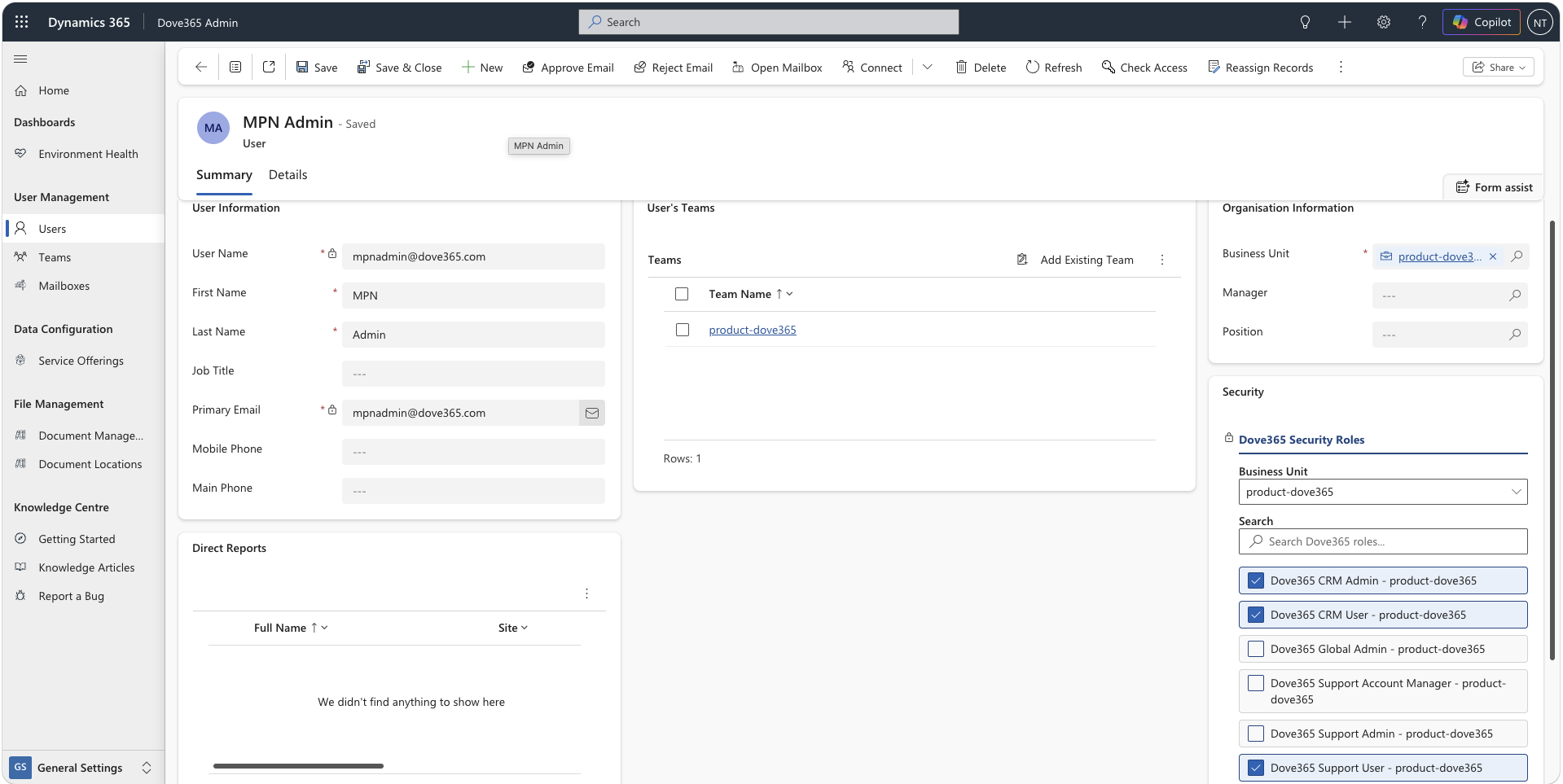
Assign roles based on the user's support responsibility:
Dove365 Support UserDove365 Support Account ManagerDove365 Support Admin
Use the least privileged role that allows the user to do their job.
Continue learning
Automation and Queue Setup Guide
Open the related Dove365 Support guide for the next part of this workflow.
Queues and Queue Items
Open the related Dove365 Support guide for the next part of this workflow.
Cases
Open the related Dove365 Support guide for the next part of this workflow.