
Purpose
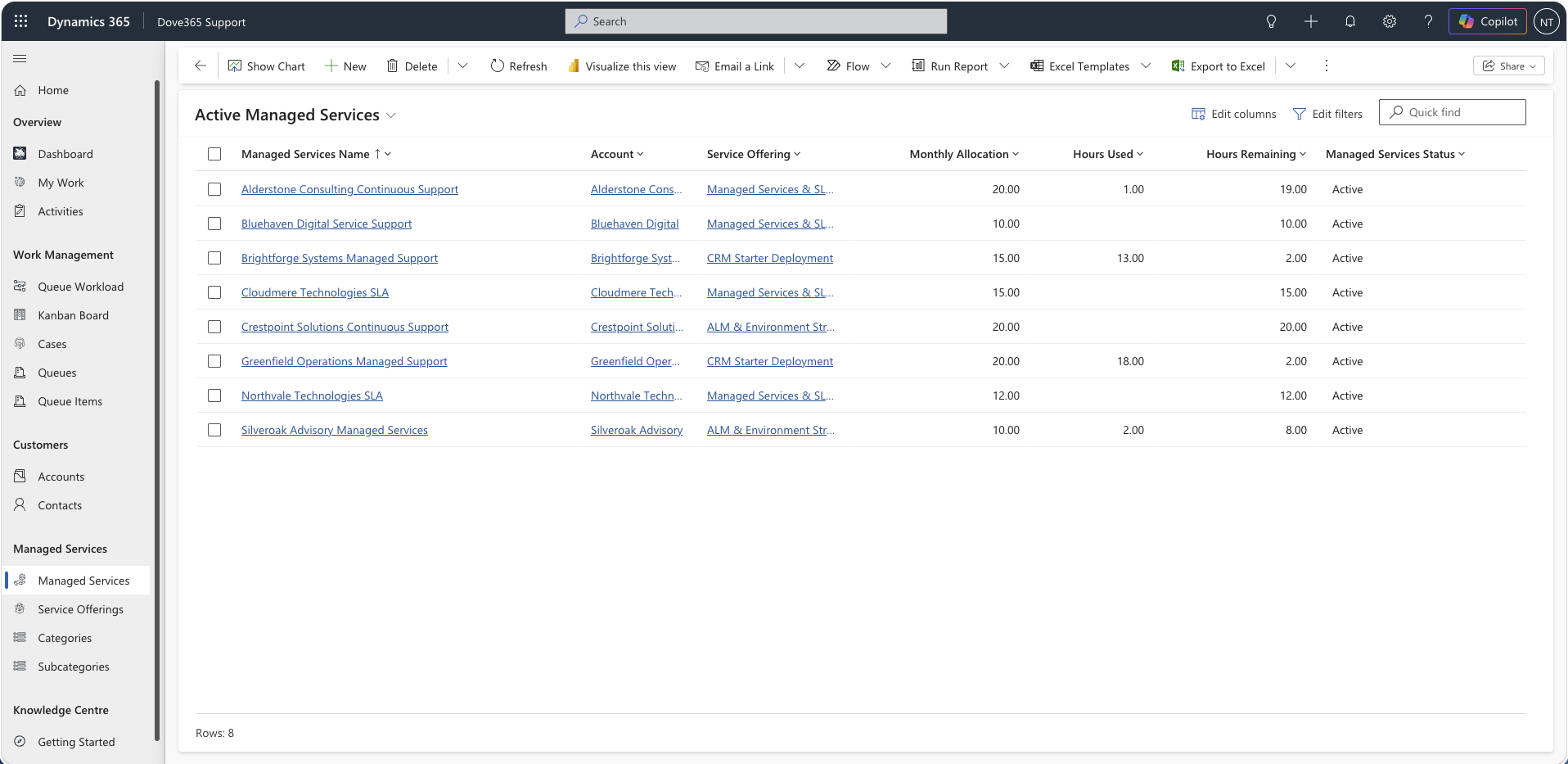
Managed Services represent contracted or agreed support allocation for an Account and Service Offering.
Use Managed Services to track:
- Allocation hours.
- Hours used.
- Hours remaining.
- Usage percentage.
- Start and end dates.
- Related Cases.
Who can create Managed Services
Managed Service creation is intended for users with the Dove365 Support Account Manager role or Dove365 Support Admin role.
The Dove365 Support User role can append or reference Managed Services where permitted but is not intended to administer them.
Creating a Managed Service
Steps:
- Open Managed Services.
- Select New.
- Choose the Account.
- Choose the Service Offering.
- Enter the monthly allocation.
- Enter start and end dates.
- Save the record.
- Confirm the record is active.
Managing Managed Services
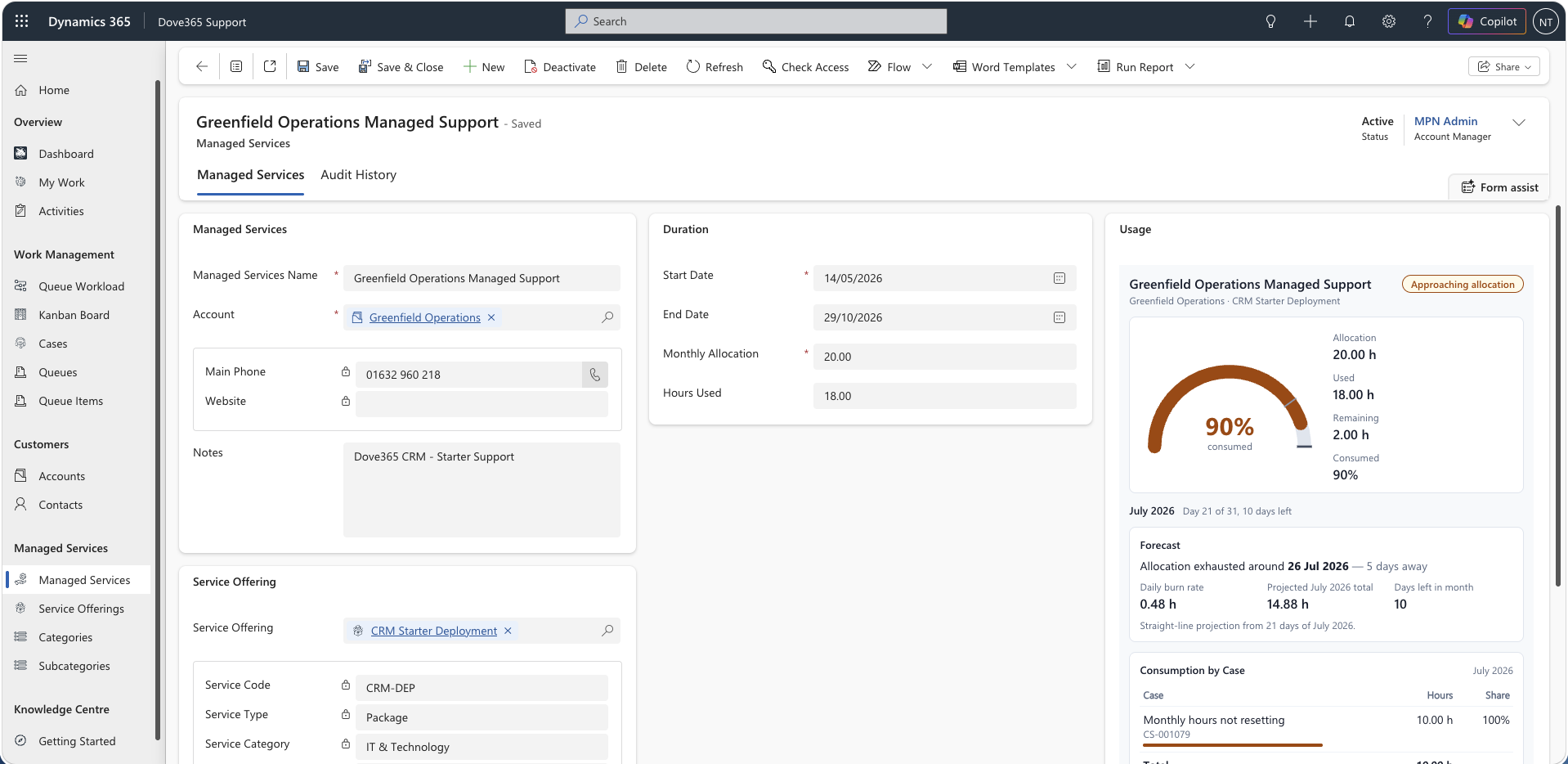
Account managers should review Managed Services regularly.
Check:
- Current allocation.
- Hours used.
- Hours remaining.
- Usage percentage.
- End date.
- Related Cases.
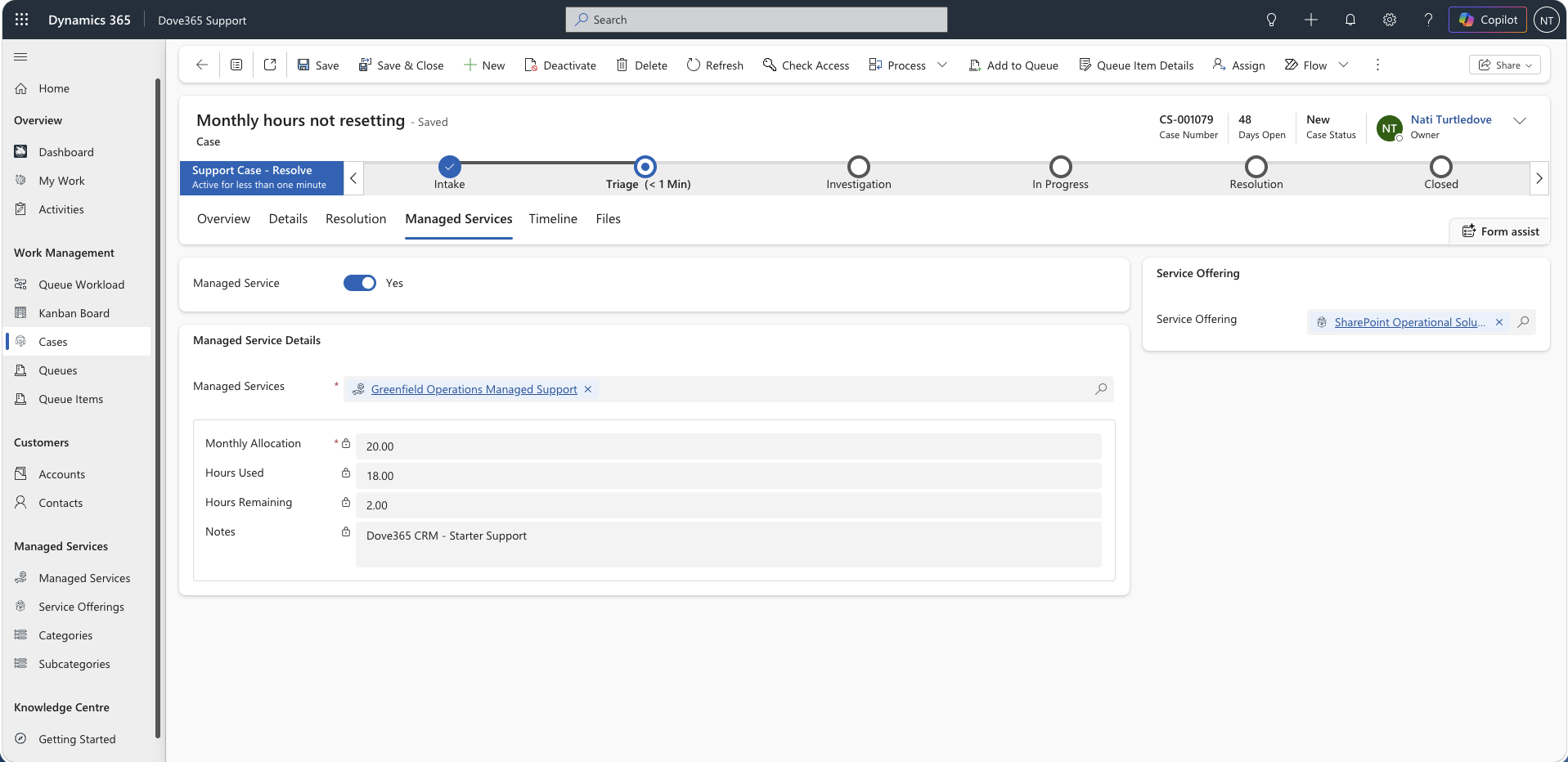
Using Managed Services on Cases
When a Case is covered by a Managed Service:
- Set the Case as managed-service related where applicable.
- Select the correct Managed Service.
- Log Support Activities with time.
- Confirm hours roll up correctly.
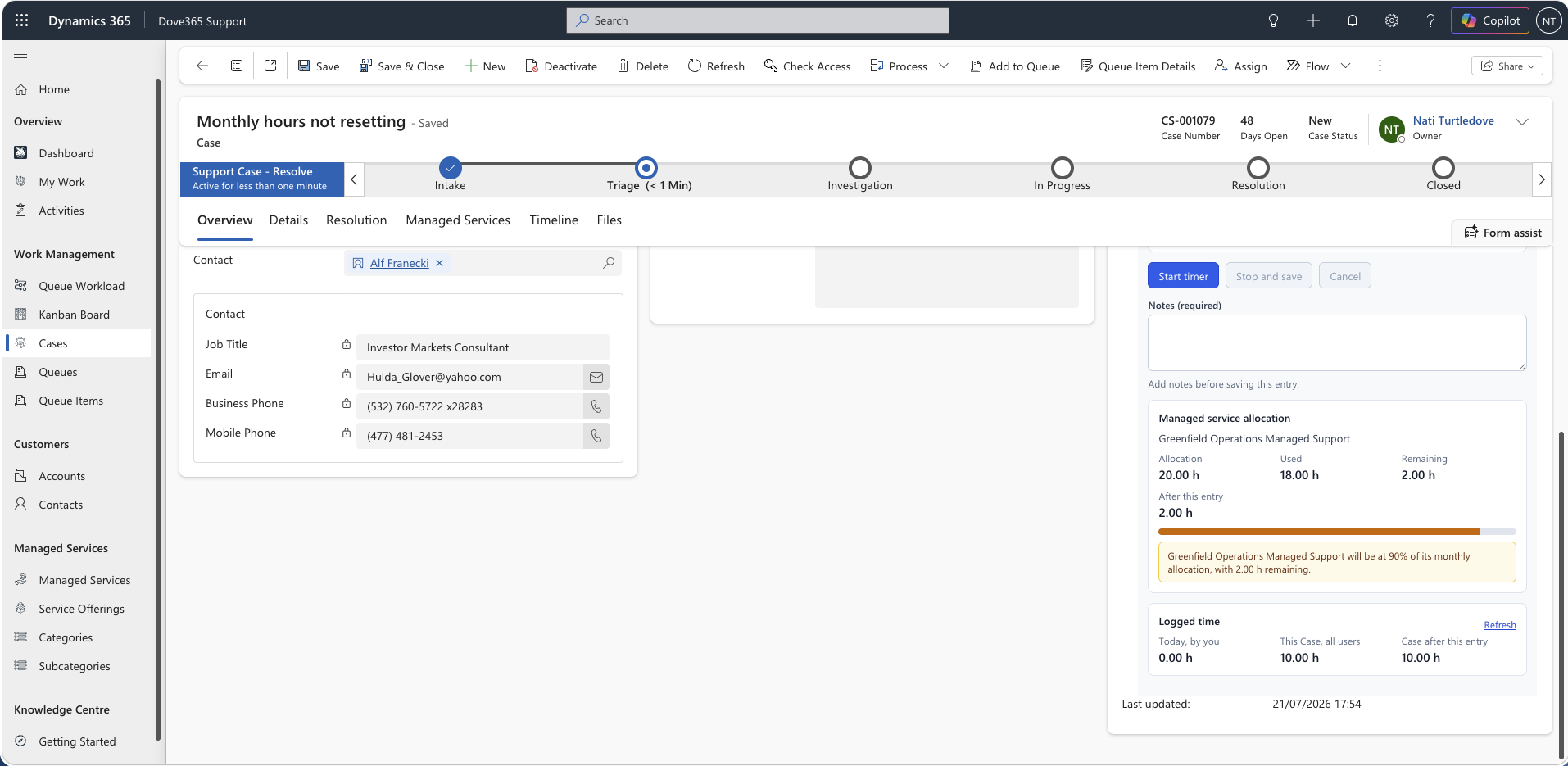
The quickest way to log the time is the Support Activity Time Tracker on the Case form. It creates the Support Activity for you and, before saving, warns you if the time would take the allocation past its warning threshold, over its limit, or if the agreement has already ended.
Service Offerings
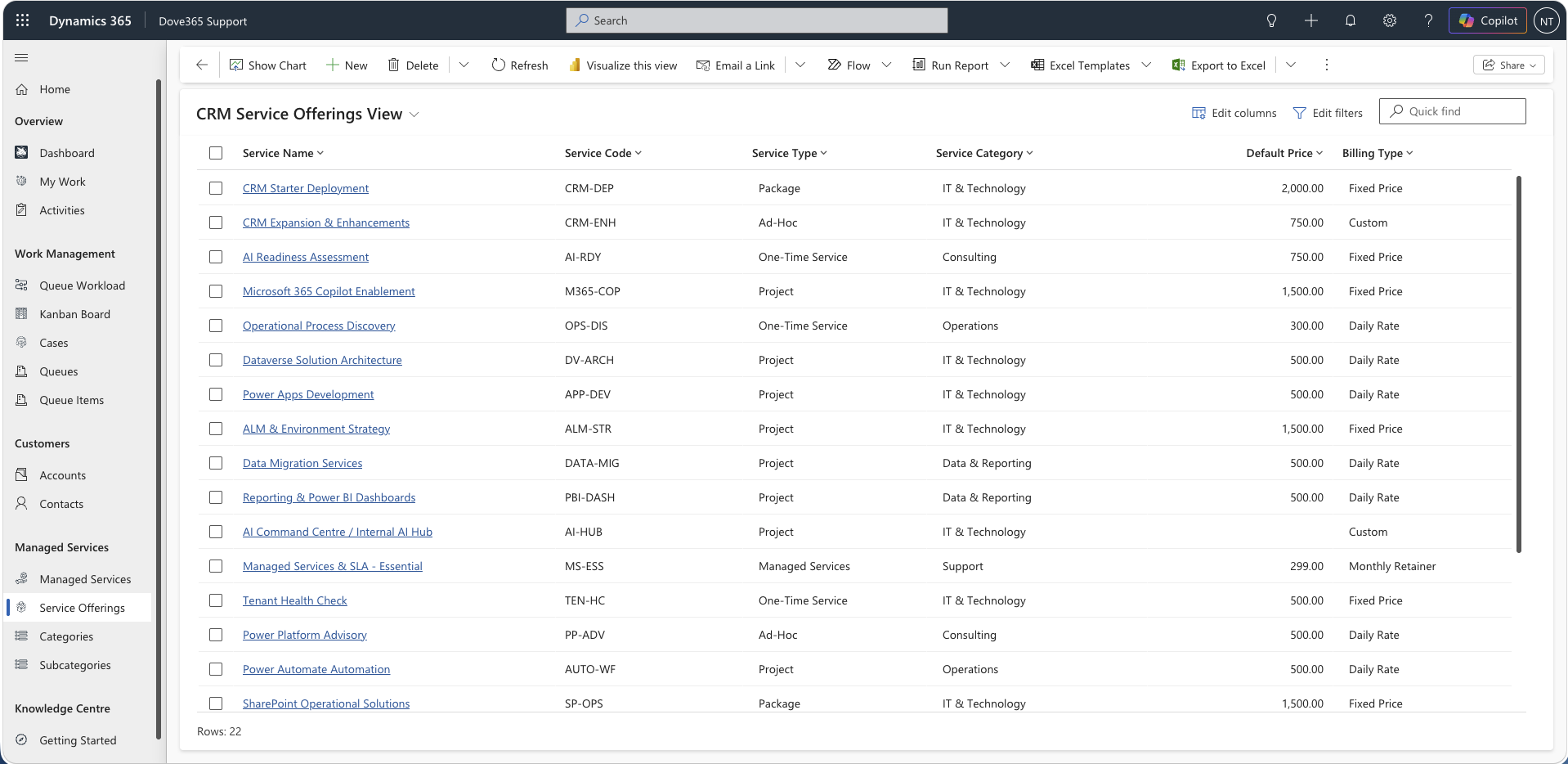
A Service Offering defines what type of service is being provided. Every Managed Service pairs an Account with a Service Offering, and Cases select a Service Offering so support coverage can be classified consistently.
Service Offerings are created and administered in the Dove365 Admin and Common area, not in Dove365 Support. Do not create duplicate Service Offerings in support-specific workflows, reuse the existing values so managed service reporting stays comparable.
Hours and usage
Support Activity hours contribute to Managed Service usage through automation and plugin logic.
Interpretation:
- Hours Used: time already consumed.
- Hours Remaining: allocation still available.
- Usage Percentage: how much of the allocation has been consumed.
- 80 percent or above: review soon.
- 100 percent: allocation is fully used.
- Over 100 percent: over-allocation.
Daily threshold automation
The daily 80 percent threshold automation identifies Managed Services that are approaching allocation.
Users should review these records and decide whether to:
- Continue under the existing agreement.
- Pause work.
- Discuss additional allocation.
- Escalate commercially.
Best practice
- Link Cases to Managed Services when the work consumes an allocation.
- Log Support Activities promptly.
- Review over-allocation before resolving or continuing high-effort work.
Continue learning
Daily Support Workflow
Follow the sequence for dashboards, queues, cases, activities, and managed service checks.
Admin and Configuration
Open the related Dove365 Support guide for the next part of this workflow.
Dashboards
Open the related Dove365 Support guide for the next part of this workflow.