
Microsoft 365 users, in your CRM
Dove365 CRM — Starter users are Microsoft 365 users. User accounts are created and managed in the Microsoft 365 admin centre, not inside CRM. Once a user has the appropriate licence and environment access, they appear in CRM for role assignment and configuration.
Single identity
There’s no separate CRM login. Users sign in to Dove365 CRM — Starter using their Microsoft 365 credentials. This simplifies access management and aligns with your existing identity governance.
Licence-driven access
Dove365 CRM — Starter requires a Power Apps Premium licence for each user. Provisioning means licensing the user in Microsoft 365 and granting them access to the Power Platform environment.
Role-based access control
Once in the system, each user’s access is controlled through security roles. What they can see and do in CRM depends entirely on which roles they have been assigned.
Provisioning and maintaining users
User management is handled through the Dove365 Admin app, which gives CRM administrators a central place to configure users, assign roles, and manage mailboxes and team memberships.
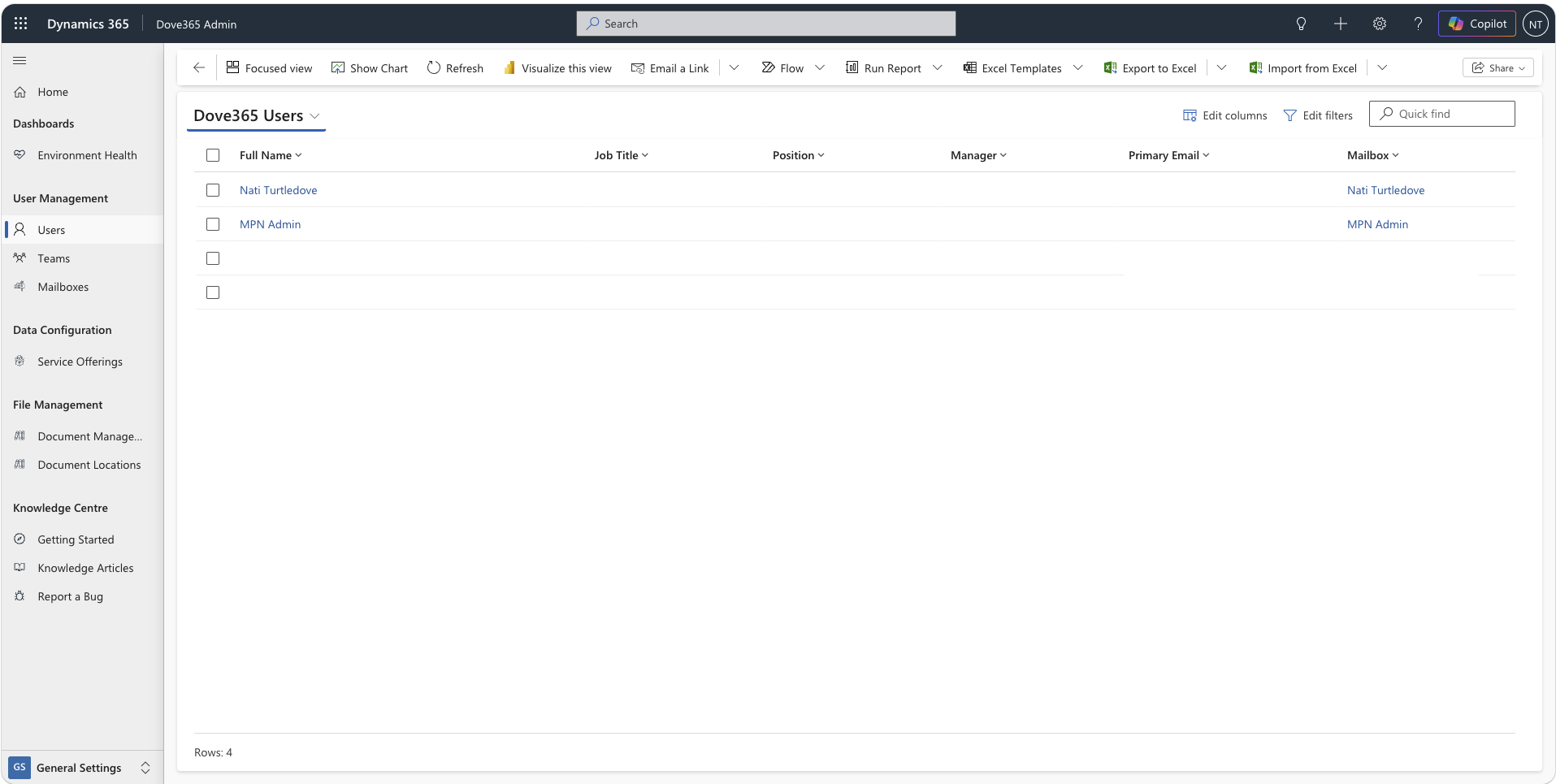
Complete user profiles
When a user appears in CRM, complete their profile: job title, phone number, business unit, manager, and position. This supports hierarchy reporting and record assignment across the team.
Role assignment
Dove365 CRM User provides standard access for day-to-day work. Dove365 CRM Admin provides additional access for administration and configuration tasks.
Mailbox configuration
If a user needs Outlook integration, their mailbox must be configured and tested for server-side synchronisation. This is done through the Admin app as part of user setup.
Deactivating users
When a team member leaves, deactivate their CRM user record rather than deleting it. Deactivation removes login access while preserving all records and history associated with that user.
Outlook add-in deployment
Users who need the Dynamics 365 App for Outlook require an additional step: the app must be deployed to their Outlook account by the CRM administrator through the Microsoft admin centre.
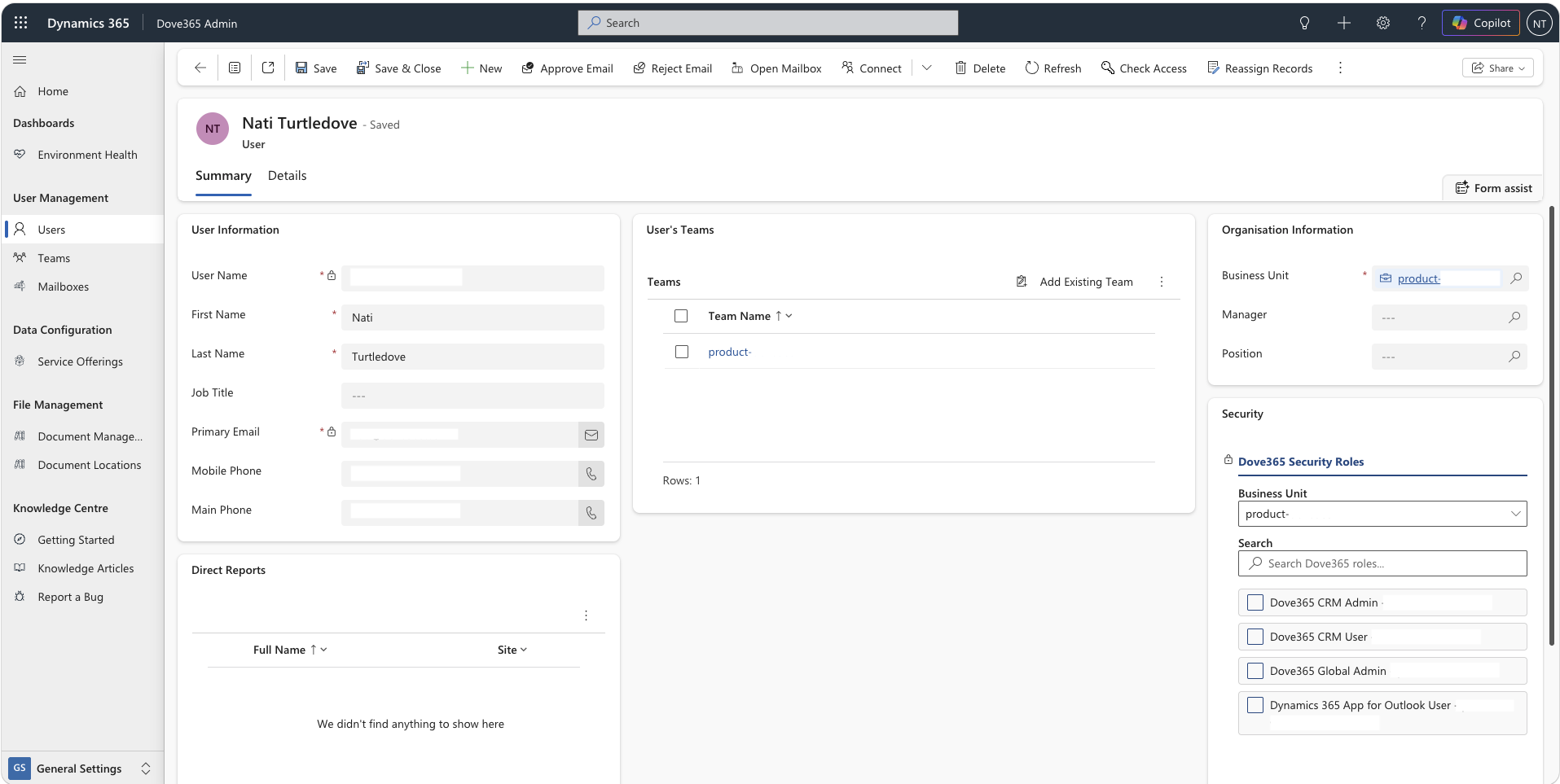
Grouping users with teams
Teams group users together for role assignment and record ownership. Roles assigned to a team apply to all members, making it easier to manage access at scale without configuring each user individually.
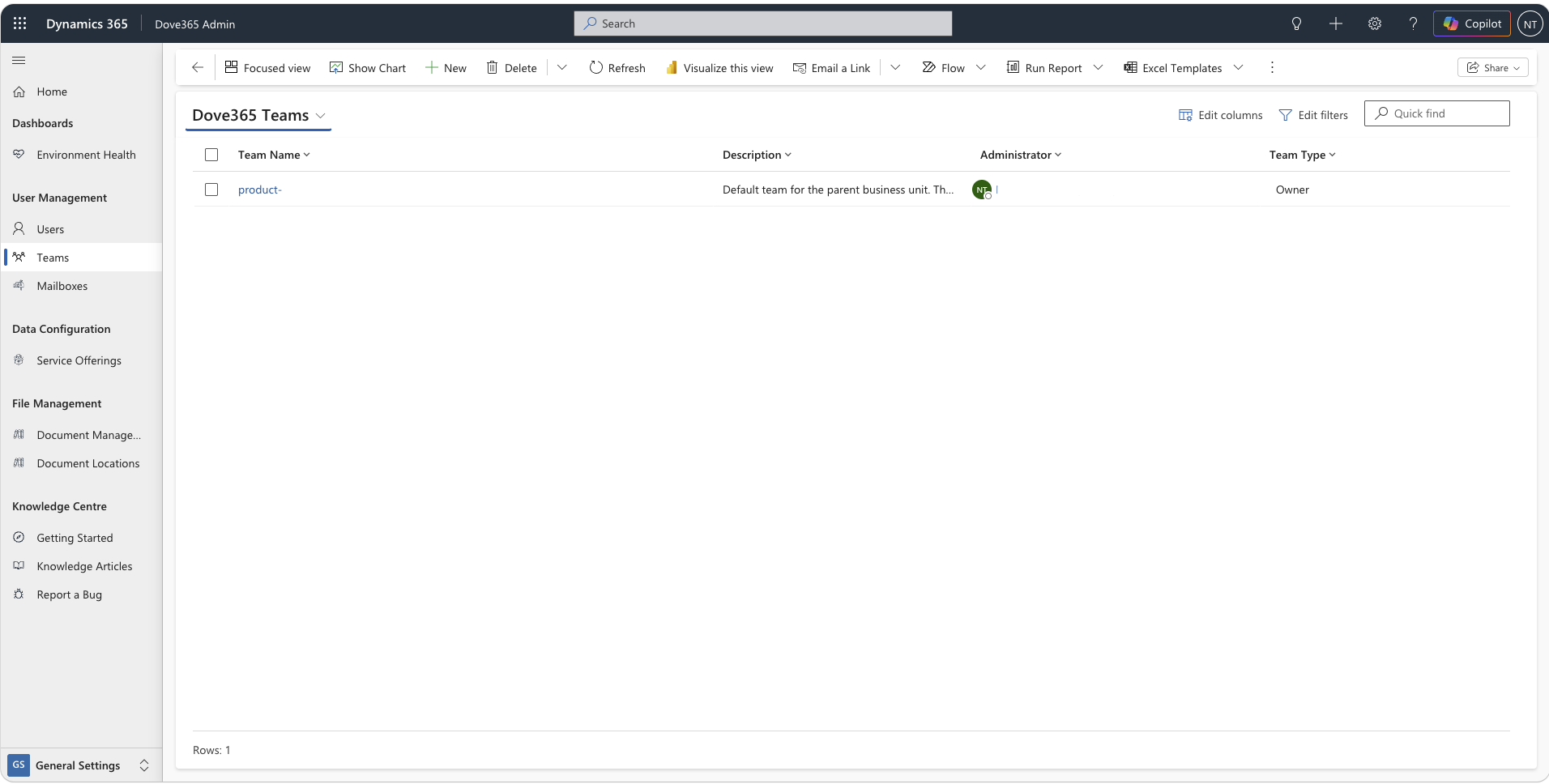
When to use teams
- Assigning the same role to a group of users
- Sharing ownership of records across a department
- Onboarding new users, add to a team for instant access
- Managing temporary or contract staff access
- Grouping users by region, department, or function
How teams work
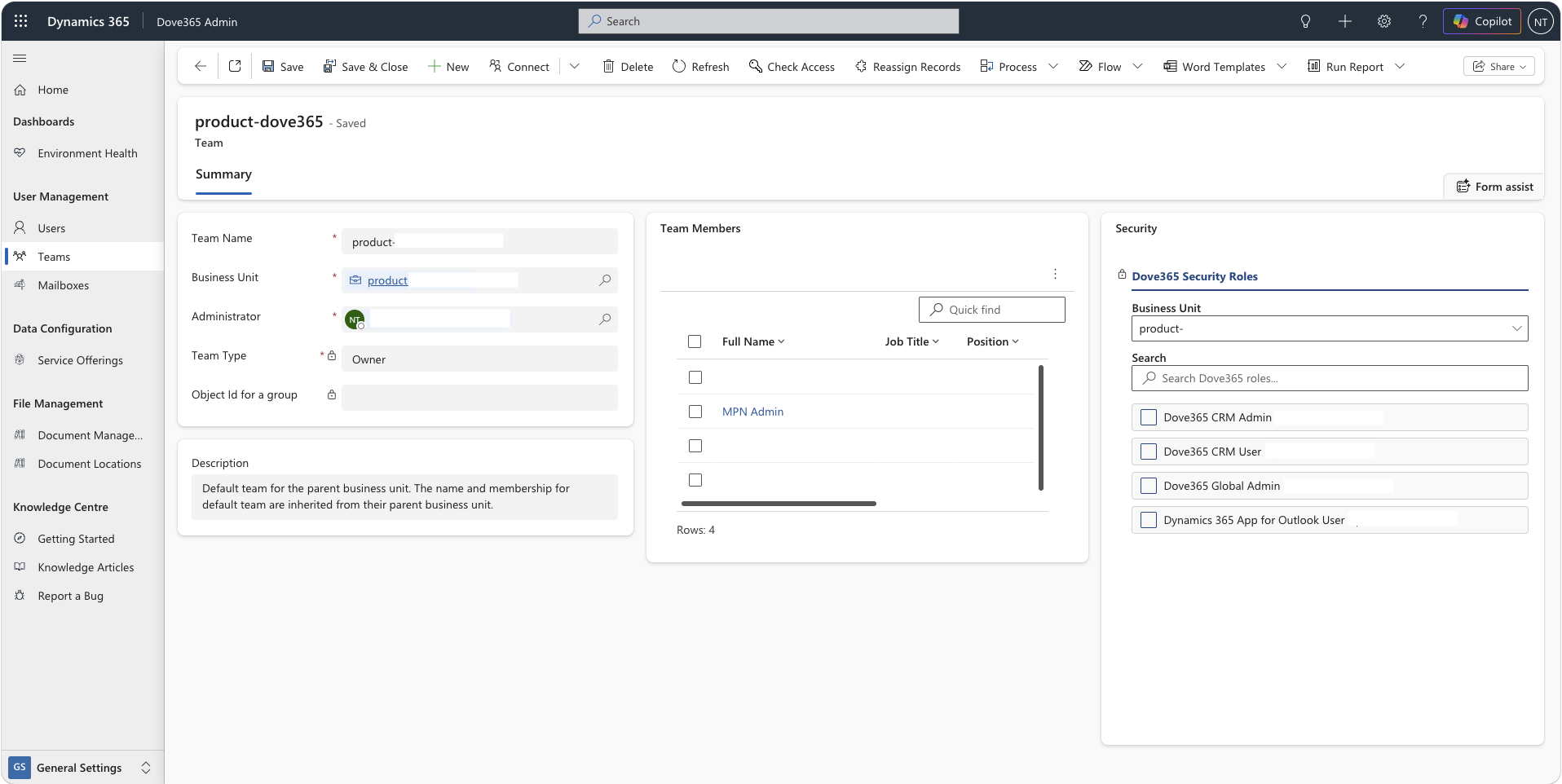
- Creating a teamTeams are created in the Admin app. Give the team a name, assign a business unit, and designate an administrator. Then add members using the team membership area on the team record.
- Roles on teams versus individualsA role assigned to a team applies to all members through their team membership. Roles can also be assigned directly to individual users. Both apply simultaneously, they are additive, not exclusive.
- Outlook add-in and teamsThe Dynamics 365 for Outlook role must be assigned directly to individual users. Team membership does not automatically grant this specific access, it must be assigned on the user record directly.
Keeping access appropriate over time
User access isn’t a one-time configuration. As your team changes, access must be reviewed and updated to ensure people have what they need, and nothing more.
- New joinersProvision the Microsoft 365 account, assign the Power Apps Premium licence, add them to the CRM environment, assign the appropriate security role or add them to the relevant team, and configure mailbox access for Outlook integration if needed.
- Role or responsibility changesWhen a user’s role changes, review their CRM access. Add roles if their new responsibilities require more access. Remove roles that are no longer appropriate. Keep access aligned with current responsibilities.
- LeaversWhen a team member leaves, deactivate their CRM user record promptly. Deactivated users cannot log in but their records, activities, and history are preserved for continuity and audit purposes.
- Periodic access reviewsReview who has Dove365 CRM Admin access periodically and ensure it’s limited to those who actively need it. Review team memberships to confirm they accurately reflect your current team structure and responsibilities.
Continue learning
Security Roles
Understand the Dove365 CRM User and Dove365 CRM Admin roles in detail, what each allows and how roles are assigned.
Outlook Integration
Understand how mailbox configuration and the Dynamics 365 App for Outlook are managed as part of user setup.
Environment Setup
Understand the licence and environment prerequisites needed before users can be provisioned in Dove365 CRM — Starter.