
Every interaction, captured
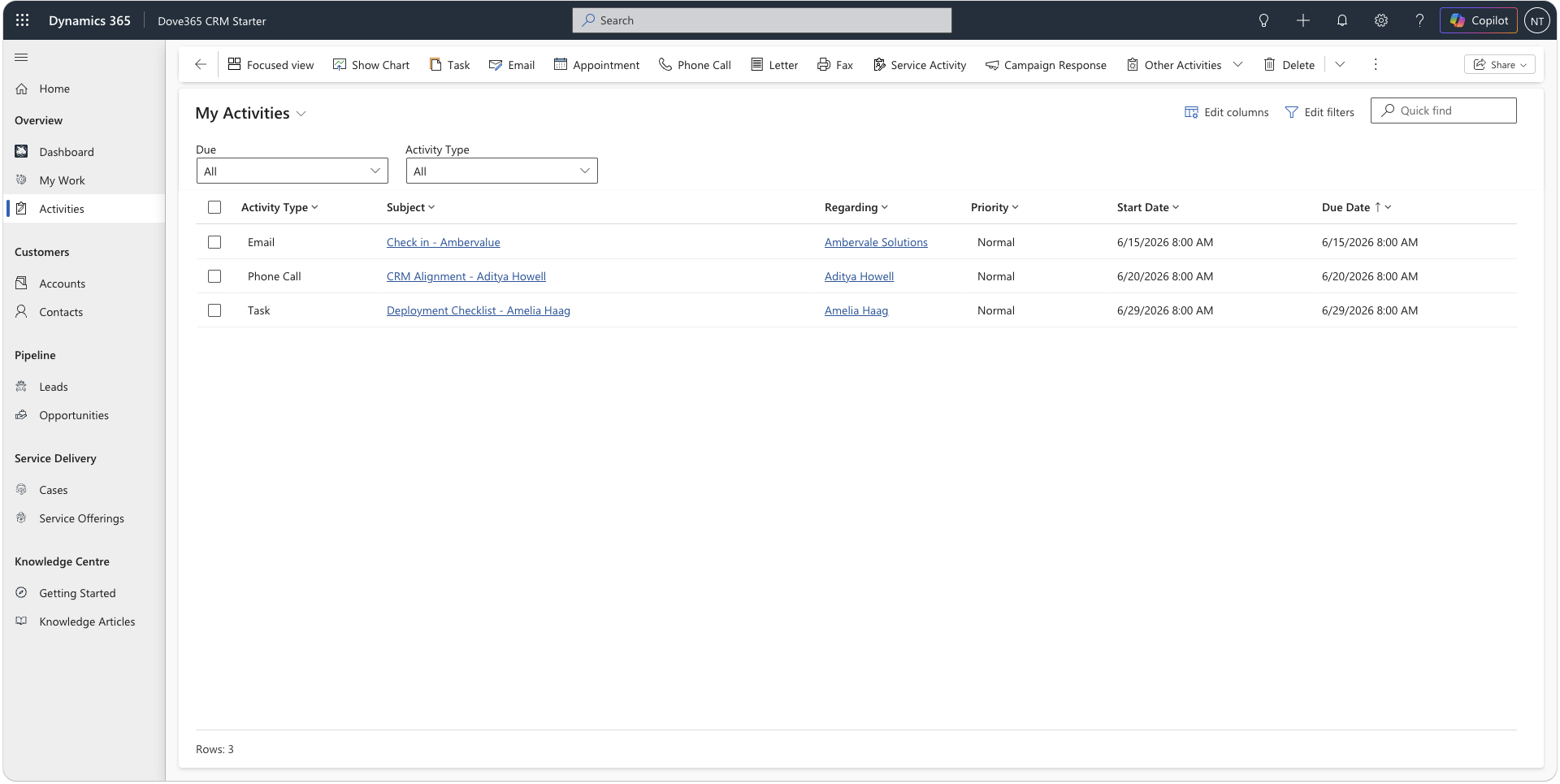
Dove365 CRM — Starter supports five types of activity, each designed to capture a different kind of customer interaction. Together they build a complete picture of the relationship on the record timeline.
Email
Track inbound and outbound emails against CRM records. With Outlook integration enabled, emails can be tracked automatically via server-side sync or manually using the Dynamics 365 App for Outlook.
Phone Call
Log calls against accounts, contacts, leads, opportunities, or cases. Record the subject, direction (inbound or outbound), duration, and notes from the conversation. Schedule follow-up tasks directly from the call record.
Task
Create tasks against any CRM record to track to-dos, follow-ups, and commitments. Tasks have a due date, owner, and status. Use them to ensure nothing gets missed and to keep commitments visible across the team.
Appointment
Log meetings, demos, site visits, or any scheduled interaction. Appointments link to specific accounts, contacts, opportunities, or cases and appear on the record timeline alongside all other activities.
Note
Add freeform notes to the timeline for context that doesn’t fit other activity types, internal observations, meeting summaries, research findings, or important background about a customer’s situation.
A complete record of every relationship
Every CRM record, accounts, contacts, leads, opportunities, and cases, has a timeline. It shows all activities, notes, and tracked emails in chronological order and is the single most important tool for understanding a customer relationship.
When to check the timeline
- Before a customer meetingReview the timeline to see what was discussed last time. Check outstanding tasks. Understand context before you speak to the customer again, without asking them to repeat themselves.
- Before converting a leadCheck the engagement history. Have enough conversations happened to justify converting? Is the timeline showing genuine interest or just a single initial contact?
- Before closing an opportunityReview the timeline to confirm all commitments have been addressed, all objections have been noted, and the full conversation has been captured before marking Won or Lost.
- When a colleague takes overThe timeline means a new team member can pick up any record without a briefing. All context, calls, emails, notes, and tasks, is already there in full.
What the timeline shows
Chronological history
Activities appear in time order with the most recent at the top. See exactly what happened and when at a glance, without searching through email or notes.
All activity types in one place
Emails, calls, tasks, appointments, and notes all appear together on the same timeline. One place to see the full picture, no switching between tools.
Searchable and filterable
Filter the timeline by activity type or date range to focus on what matters, all tracked emails for a specific period, or all open tasks against a specific record.
Linked across related records
A tracked email sent to a contact may appear on multiple related records, the contact, account, and linked opportunity, giving you a connected view of the interaction.
Outlook emails in your CRM timeline
With Outlook integration configured, emails sent and received in Outlook can be tracked against CRM records automatically. Your inbox and your CRM stay aligned without manual effort.
Automatic tracking
Server-side synchronisation can automatically track emails to and from known CRM contacts. Once configured, tracked emails appear on the timeline without any manual action from your team.
Manual tracking from Outlook
Use the Dynamics 365 App for Outlook to manually track specific emails. Choose which emails to track and link them to specific opportunities, cases, or leads using Set Regarding.
Tracked emails on the timeline
Once tracked, emails appear on the CRM timeline alongside all other activities. Anyone with access to the record can see the full email history, no inbox access required.
Making activities work for your team
Use meaningful subject lines
A task or call record titled ‘Follow-up’ is useless without context. Use specific, descriptive subjects, ‘Discussed proposal scope with Sarah’ tells a story. ‘Call’ does not.
Complete activities when done
Marking tasks and calls as complete keeps your activity list accurate and your open task dashboard meaningful. Outstanding activities left open inflate your workload view.
Add notes for important context
If a call reveals something significant about a customer’s situation, add a note immediately. Notes live on the timeline permanently and provide context that field values alone can’t capture.
Check the timeline before acting
Before calling a customer, sending a proposal, or creating a case, take 30 seconds to review the timeline. It prevents repeated conversations and ensures you always engage with the full context.
Create a task for every commitment
If you promise a customer something, information, a callback, a document, create a task before the conversation ends. Tasks are how Dove365 CRM — Starter ensures commitments are tracked and don’t get lost.
Continue learning
Outlook Integration
Understand how email tracking works with Outlook, server-side sync, manual tracking, and the Dynamics 365 App for Outlook.
Lead Management
See how activities and the timeline support the lead lifecycle, from initial engagement through qualification and conversion.
Case Management
Understand how activity tracking supports case investigation, escalation, and resolution workflows in the support process.